All Scenarios

148

Passed Scenarios

114

Failed Scenarios

4

Skipped Scenarios

30

Execution Time: 59m 32s 405ms

Expand All | Collapse All

In order to use the product
I want to be sure to use a sane environment

Then "server" should have a FQDN 385ms

And reverse resolution should work for "server" 637ms

And the clock from "server" should be exact 683ms

And service "apache2" is enabled on "server" 614ms

And service "apache2" is active on "server" 648ms

And service "cobblerd" is enabled on "server" 639ms

And service "cobblerd" is active on "server" 618ms

And service "rhn-search" is enabled on "server" 620ms

And service "rhn-search" is active on "server" 613ms

And service "salt-api" is enabled on "server" 627ms

And service "salt-api" is active on "server" 624ms

And service "salt-master" is enabled on "server" 616ms

And service "salt-master" is active on "server" 616ms

And service "taskomatic" is enabled on "server" 623ms

And service "taskomatic" is active on "server" 620ms

And socket "tftp" is enabled on "server" 633ms

And socket "tftp" is active on "server" 641ms

And service "tomcat" is enabled on "server" 625ms

And service "tomcat" is active on "server" 632ms

Then "proxy" should have a FQDN 3s 15ms

And reverse resolution should work for "proxy" 278ms

And "proxy" should communicate with the server using public interface 936ms

And the clock from "proxy" should be exact 275ms

Then "sle_minion" should have a FQDN 4s 924ms

And reverse resolution should work for "sle_minion" 501ms

And "sle_minion" should communicate with the server using public interface 1s 76ms

And the clock from "sle_minion" should be exact 399ms

Then "build_host" should have a FQDN 2s 546ms

And reverse resolution should work for "build_host" 279ms

And "build_host" should communicate with the server using public interface 903ms

And the clock from "build_host" should be exact 296ms

Then "ssh_minion" should have a FQDN 4s 961ms

And reverse resolution should work for "ssh_minion" 474ms

And "ssh_minion" should communicate with the server using public interface 1s 110ms

And the clock from "ssh_minion" should be exact 442ms

Then "rhlike_minion" should have a FQDN 2s 319ms

And reverse resolution should work for "rhlike_minion" 211ms

And "rhlike_minion" should communicate with the server using public interface 872ms

And the clock from "rhlike_minion" should be exact 214ms

Then "deblike_minion" should have a FQDN 5s 144ms

And reverse resolution should work for "deblike_minion" 242ms

And "deblike_minion" should communicate with the server using public interface 886ms

And the clock from "deblike_minion" should be exact 225ms

Then it should be possible to reach the test packages 0s

And it should be possible to reach the build sources 0s

And it should be possible to reach the Docker profiles 0s

Then it should be possible to use the HTTP proxy 0s

Then it should be possible to reach the authenticated registry 653ms

Then it should be possible to reach the not authenticated registry 651ms

Then it should be possible to use the custom download endpoint 643ms

In order to use the product
As the admin user
I want to create the organisation, the first users and set the HTTP proxy

When I run "rm -Rf /srv/salt/*" on "server" 666ms

Given I access the host the first time 0s

When I go to the home page 0s

And I enter "SUSE Test" as "orgName" 0s

And I enter "admin" as "login" 0s

And I enter "admin" as "desiredpassword" 0s

And I enter "admin" as "desiredpasswordConfirm" 0s

And I select "Mr." from "prefix" 0s

And I enter "Admin" as "firstNames" 0s

And I enter "Admin" as "lastName" 0s

And I enter "galaxy-noise@localhost" as "email" 0s

And I click on "Create Organization" 0s

Then I am logged in 0s

Given I am authorized for the "Admin" section 40s 26ms

When I wait until mgr-sync refresh is finished 3s 613ms

When I follow the left menu "Users > User List > Active" 187ms

And I follow "Create User" 585ms

And I enter "testing" as "login" 56ms

And I enter "testing" as "desiredpassword" 54ms

And I enter "testing" as "desiredpasswordConfirm" 57ms

And I select "Mr." from "prefix" 45ms

And I enter "Test" as "firstNames" 54ms

And I enter "User" as "lastName" 52ms

And I enter "galaxy-noise@localhost" as "email" 72ms

And I click on "Create Login" 862ms

Then I should see a "Account testing created, login information sent to galaxy-noise@localhost" text 69ms

And I should see a "testing" link 11ms

When I follow the left menu "Users > User List > Active" 69ms

And I follow "testing" 447ms

And I check "role_org_admin" 81ms

And I check "role_system_group_admin" 74ms

And I check "role_channel_admin" 74ms

And I check "role_activation_key_admin" 75ms

And I check "role_config_admin" 73ms

And I click on "Update" 604ms

Then I should see a "User information updated" text 76ms

And I should see a "testing" text 72ms

When I follow the left menu "Admin > Setup Wizard > HTTP Proxy" 0s

Then I should see a "HTTP Proxy Hostname" text 0s

And I should see a "HTTP Proxy Username" text 0s

And I should see a "HTTP Proxy Password" text 0s

When I enter the address of the HTTP proxy as "HTTP Proxy Hostname" 0s

And I enter "suma3" as "HTTP Proxy Username" 0s

And I enter "P4$$w/ord With%and&" as "HTTP Proxy Password" 0s

And I click on "Save and Verify" 0s

Then HTTP proxy verification should have succeeded 0s

* Mon Jan 19 2026 Marek Czernek
- Make syntax in httputil_test compatible with Python 3.6
- Fix KeyError in postgres module with PostgreSQL 17 (bsc#1254325)
- Added:
* fix-tornado-s-httputil_test-syntax-for-python-3.6.patch
* backport-add-maintain-m-privilege-to-postgres-module.patch

* Wed Jan 14 2026 Marek Czernek
- Use internal deb classes instead of external aptsource lib
- Speed up wheel key.finger call (bsc#1240532)
- Add security patches (bsc#1254903,bsc#1254905,bsc#1254904)
- Simplify and speed up utils.find_json function (bsc#1246130)
- Added:
* use-internal-salt.utils.pkg.deb-classes-instead-of-a.patch
* speedup-wheel-key.finger-call-bsc-1240532-713.patch

When I query latest Salt changes on "server" 756ms

In order to test the product using shortcuts
As root user
I want to add pillar data to disable that feature

When I turn off disable_local_repos for all clients 3s 783ms

Given I am authorized for the "Admin" section 0s

When I follow the left menu "Admin > Setup Wizard > Organization Credentials" 0s

And I ask to add new credentials 0s

And I enter the SCC credentials 0s

And I click on "Save" 0s

And I wait until the SCC credentials are valid 0s

In order to set up my personal preferences
As admin
I want to navigate through "Home" submenus changing some settings

Given I am authorized as "admin" with password "admin" 501ms

When I follow the left menu "Home > My Preferences" 73ms

And I select "100" from "pagesize" 68ms

And I click on "Save Preferences" 619ms

Then I should see a "Preferences modified" text 104ms

Given I am authorized as "testing" with password "testing" 2s 536ms

When I follow the left menu "Home > My Preferences" 59ms

And I select "100" from "pagesize" 49ms

And I click on "Save Preferences" 534ms

Then I should see a "Preferences modified" text 98ms

New user kiwikiwi created with roles: image_admin

Given I am authorized for the "Admin" section 2s 83ms

When I create a user with name "kiwikiwi" and password "kiwikiwi" with roles "image_admin" 2s 9ms

New user docker created with roles: image_admin

Given I am authorized for the "Admin" section 451ms

When I create a user with name "docker" and password "docker" with roles "image_admin" 1s 788ms

When I follow the left menu "Images > Stores" 109ms

And I follow "Create" 440ms

And I enter "galaxy-registry" as "label" 97ms

And I enter the URI of the registry as "uri" 134ms

And I click on "create-btn" 60ms

Then I wait until table row contains a "galaxy-registry" text 2s 123ms

And I should see a "Items 1 - 1 of 1" text 61ms

Given I am authorized for the "Admin" section 26s 895ms

When I follow the left menu "Admin > Task Schedules" 139ms

And I follow "mgr-sync-refresh-default" 1s 607ms

And I choose "disabled" 56ms

And I click on "Update Schedule" 1s 477ms

And I click on "Disable Schedule" 1s 645ms

When I follow the left menu "Admin > Task Schedules" 62ms

And I follow "cobbler-sync-default" 1s 343ms

And I choose "disabled" 46ms

And I click on "Update Schedule" 54ms

And I click on "Disable Schedule" 1s 645ms

In order to use software channels
As root user
I want to list available channels and enable them

When I refresh SCC 31s 38ms

And I execute mgr-sync "list channels -e" with user "admin" and password "admin" 2s 326ms

Then I should get "[ ] SLE-Product-SLES15-SP7-Pool for x86_64 SUSE Linux Enterprise Server 15 SP7 x86_64 [sle-product-sles15-sp7-pool-x86_64]" < 1ms

And I should get " [ ] SLE-Product-SLES15-SP7-Updates for x86_64 SUSE Linux Enterprise Server 15 SP7 x86_64 [sle-product-sles15-sp7-updates-x86_64]" < 1ms

And I should get " [ ] SLE15-SP7-Installer-Updates for x86_64 SUSE Linux Enterprise Server 15 SP7 x86_64 [sle15-sp7-installer-updates-x86_64]" < 1ms

When I execute mgr-sync "list channels -e --no-optional" 1s 536ms

Then I should get "[ ] SLE-Product-SLES15-SP7-Pool for x86_64 SUSE Linux Enterprise Server 15 SP7 x86_64 [sle-product-sles15-sp7-pool-x86_64]" < 1ms

And I should get " [ ] SLE-Product-SLES15-SP7-Updates for x86_64 SUSE Linux Enterprise Server 15 SP7 x86_64 [sle-product-sles15-sp7-updates-x86_64]" < 1ms

And I shouldn't get " [ ] SLE15-SP7-Installer-Updates for x86_64 SUSE Linux Enterprise Server 15 SP7 x86_64 [sle15-sp7-installer-updates-x86_64]" < 1ms

When I execute mgr-sync "list products" 1s 501ms

Then I should get "[ ] SUSE Linux Enterprise Server 15 SP7 x86_64" < 1ms

When I execute mgr-sync "list products --expand" 0s

Then I should get "[ ] SUSE Linux Enterprise Server 15 SP7 x86_64" 0s

And I should get " [ ] SUSE Multi-Linux Manager Proxy Extension 5.1 x86_64" 0s

And I should get " [ ] SUSE Multi-Linux Manager Proxy Extension for SLE 5.1 x86_64" 0s

And I should get " [ ] (R) SUSE Multi-Linux Manager Client Tools for SUSE Liberty Linux 7, RHEL and clones 7 x86_64" 0s

And I should get " [ ] (R) SUSE Multi-Linux Manager Client Tools for SLE 15 x86_64" 0s

When I execute mgr-sync "list products --expand --filter x86_64" 1s 482ms

Then I should get "[ ] SUSE Linux Enterprise Server 15 SP7 x86_64" < 1ms

And I shouldn't get "ppc64" < 1ms

And I shouldn't get "s390x" < 1ms

When I remove the mgr-sync cache file 654ms

And I execute mgr-sync refresh 1m 777ms

Then I should get "Timeout. No user input for 60 seconds. Exiting..." < 1ms

When I refresh SCC 26s 952ms

Given I am authorized for the "Admin" section 467ms

When I follow the left menu "Admin > Setup Wizard > Products" 179ms

And I wait until I see "Product Description" text 1s 40ms

Then I should see a "Arch" text 119ms

And I should see a "Channels" text 119ms

And I should not see a "WebYaST 1.3" text 119ms

When I follow the left menu "Admin > Setup Wizard > Products" 68ms

And I wait until I do not see "currently running" text 79ms

And I wait until I do not see "Loading" text 836ms

And I enter "RHEL and Liberty" as the filtered product description 163ms

Then I should see a "RHEL and Liberty 8 Base" text 84ms

When I select "x86_64" from "product-arch-filter" 1s 130ms

Then I should see a "RHEL and Liberty 8 Base" text 89ms

When I follow the left menu "Admin > Setup Wizard > Products" 0s

And I wait until I do not see "currently running" text 0s

And I wait until I do not see "Loading" text 0s

And I enter "SUSE Linux Enterprise Server for SAP Applications 15 x86_64" as the filtered product description 0s

And I click the channel list of product "SUSE Linux Enterprise Server for SAP Applications 15 x86_64" 0s

Then I should see a "Product Channels" text 0s

And I should see a "Mandatory Channels" text 0s

And I should see a "Optional Channels" text 0s

When I close the modal dialog 0s

Given I am authorized for the "Admin" section 0s

When I follow the left menu "Admin > Setup Wizard > Products" 0s

And I wait until I do not see "currently running" text 0s

And I wait until I do not see "Loading" text 0s

And I enter "SUSE Linux Enterprise Server 15 SP7" as the filtered product description 0s

And I wait until I see "SUSE Linux Enterprise Server 15 SP7 x86_64" text 0s

And I open the sub-list of the product "SUSE Linux Enterprise Server 15 SP7 x86_64" 0s

And I open the sub-list of the product "Basesystem Module 15 SP7 x86_64" 0s

And I open the sub-list of the product "Desktop Applications Module 15 SP7 x86_64" 0s

And I open the sub-list of the product "SUSE Multi-Linux Manager Client Tools for SLE 15 x86_64" if present 0s

Then I should see that the "Basesystem Module 15 SP7 x86_64" product is "recommended" 0s

And I should see that the "Server Applications Module 15 SP7 x86_64" product is "recommended" 0s

And I should see that the "SUSE Multi-Linux Manager Client Tools for SLE 15 x86_64" product is "recommended" 0s

When I select "SUSE Linux Enterprise Server 15 SP7 x86_64" as a product 0s

Then I should see the "SUSE Linux Enterprise Server 15 SP7 x86_64" selected 0s

And I should see the "Basesystem Module 15 SP7 x86_64" selected 0s

And I should see the "Server Applications Module 15 SP7 x86_64" selected 0s

And I should see the "SUSE Multi-Linux Manager Client Tools for SLE 15 x86_64" selected 0s

When I select "Desktop Applications Module 15 SP7 x86_64" as a product 0s

And I select "Development Tools Module 15 SP7 x86_64" as a product 0s

Then I should see the "Desktop Applications Module 15 SP7 x86_64" selected 0s

And I should see the "Development Tools Module 15 SP7 x86_64" selected 0s

When I select "Python 3 Module 15 SP7 x86_64" as a product 0s

Then I should see the "Python 3 Module 15 SP7 x86_64" selected 0s

When I select "Containers Module 15 SP7 x86_64" as a product 0s

Then I should see the "Containers Module 15 SP7 x86_64" selected 0s

When I click the Add Product button 0s

And I wait until I see "SUSE Linux Enterprise Server 15 SP7 x86_64" product has been added 0s

Then the SLE15 SP7 product should be added 0s

When I wait until all synchronized channels for "sles15-sp7" have finished 0s

Reposync of channel opensuse_tumbleweed-x86_64 killed
Channel opensuse_tumbleweed-uyuni-client-x86_64 added
Channel opensuse_tumbleweed-uyuni-client-devel-x86_64 added

When I use spacewalk-common-channel to add channel "opensuse_tumbleweed" with arch "x86_64" 7s 525ms

And I kill running spacewalk-repo-sync for "opensuse_tumbleweed-x86_64" channel 1s 477ms

And I use spacewalk-repo-sync to sync channel "opensuse_tumbleweed-x86_64" including only client tools dependencies 1m 31s 553ms

And I use spacewalk-common-channel to add all "tumbleweed-client-tools-x86_64" channels with arch "x86_64" 15s 642ms

Channel opensuse_tumbleweed-x86_64 added
Channel opensuse_tumbleweed-uyuni-client-devel-x86_64 added
Channel uyuni-proxy-devel-tumbleweed-x86_64 added
Channel opensuse_tumbleweed-uyuni-client-devel-x86_64 finished reposync
Channel opensuse_tumbleweed-x86_64 finished reposync
1 minutes out of 229 waiting for 'uyuni-proxy' channels to finish reposync
Channel uyuni-proxy-devel-tumbleweed-x86_64 finished reposync
All channels for uyuni-proxy have been fully synced

When I use spacewalk-common-channel to add all "uyuni-proxy" channels with arch "x86_64" 23s 129ms

And I wait until all synchronized channels for "uyuni-proxy" have finished 1m 4s 39ms

Products list: Available Channels: Status: - [I] - channel is installed - [ ] - channel is not installed, but is available - [U] - channel is unavailable [ ] EL9-Pool for x86_64 RHEL and Liberty 9 Base [el9-pool-x86_64] [ ] RHEL7-Pool for x86_64 RHEL7 Base x86_64 [rhel7-pool-x86_64] [ ] RHEL8-Pool for x86_64 RHEL and Liberty 8 Base [rhel8-pool-x86_64] [ ] SLE-Micro-5.3-Pool for x86_64 SUSE Linux Enterprise Micro 5.3 x86_64 [sle-micro-5.3-pool-x86_64] [ ] SLE-Product-SLED15-SP4-Pool for x86_64 SUSE Linux Enterprise Desktop 15 SP4 x86_64 [sle-product-sled15-sp4-pool-x86_64] [ ] SLE-Product-SLES15-SP4-Pool for x86_64 SUSE Linux Enterprise Server 15 SP4 x86_64 [sle-product-sles15-sp4-pool-x86_64] [ ] SLE-Product-SLES15-SP5-Pool for x86_64 SUSE Linux Enterprise Server 15 SP5 x86_64 [sle-product-sles15-sp5-pool-x86_64] [ ] SLE-Product-SLES15-SP6-Pool for x86_64 SUSE Linux Enterprise Server 15 SP6 x86_64 [sle-product-sles15-sp6-pool-x86_64] [I] SLE-Product-SLES15-SP7-Pool for x86_64 SUSE Linux Enterprise Server 15 SP7 x86_64 [sle-product-sles15-sp7-pool-x86_64] [I] SLE-Module-Basesystem15-SP7-Pool for x86_64 Basesystem Module 15 SP7 x86_64 [sle-module-basesystem15-sp7-pool-x86_64] [I] SLE-Module-Basesystem15-SP7-Updates for x86_64 Basesystem Module 15 SP7 x86_64 [sle-module-basesystem15-sp7-updates-x86_64] [ ] SLE-Module-Containers15-SP7-Pool for x86_64 Containers Module 15 SP7 x86_64 [sle-module-containers15-sp7-pool-x86_64] [ ] SLE-Module-Containers15-SP7-Updates for x86_64 Containers Module 15 SP7 x86_64 [sle-module-containers15-sp7-updates-x86_64] [I] SLE-Module-Desktop-Applications15-SP7-Pool for x86_64 Desktop Applications Module 15 SP7 x86_64 [sle-module-desktop-applications15-sp7-pool-x86_64] [I] SLE-Module-Desktop-Applications15-SP7-Updates for x86_64 Desktop Applications Module 15 SP7 x86_64 [sle-module-desktop-applications15-sp7-updates-x86_64] [I] SLE-Module-DevTools15-SP7-Pool for x86_64 Development Tools Module 15 SP7 x86_64 [sle-module-devtools15-sp7-pool-x86_64] [I] SLE-Module-DevTools15-SP7-Updates for x86_64 Development Tools Module 15 SP7 x86_64 [sle-module-devtools15-sp7-updates-x86_64] [ ] SLE-Module-Live-Patching15-SP7-Pool for x86_64 SUSE Linux Enterprise Live Patching 15 SP7 x86_64 [sle-module-live-patching15-sp7-pool-x86_64] [ ] SLE-Module-Live-Patching15-SP7-Updates for x86_64 SUSE Linux Enterprise Live Patching 15 SP7 x86_64 [sle-module-live-patching15-sp7-updates-x86_64] [ ] SLE-Module-Public-Cloud15-SP7-Pool for x86_64 Public Cloud Module 15 SP7 x86_64 [sle-module-public-cloud15-sp7-pool-x86_64] [ ] SLE-Module-Public-Cloud15-SP7-Updates for x86_64 Public Cloud Module 15 SP7 x86_64 [sle-module-public-cloud15-sp7-updates-x86_64] [I] SLE-Module-Python3-15-SP7-Pool for x86_64 Python 3 Module 15 SP7 x86_64 [sle-module-python3-15-sp7-pool-x86_64] [I] SLE-Module-Python3-15-SP7-Updates for x86_64 Python 3 Module 15 SP7 x86_64 [sle-module-python3-15-sp7-updates-x86_64] [I] SLE-Module-Server-Applications15-SP7-Pool for x86_64 Server Applications Module 15 SP7 x86_64 [sle-module-server-applications15-sp7-pool-x86_64] [I] SLE-Module-Server-Applications15-SP7-Updates for x86_64 Server Applications Module 15 SP7 x86_64 [sle-module-server-applications15-sp7-updates-x86_64] [I] SLE-Module-Systems-Management-15-SP7-Pool for x86_64 Systems Management Module 15 SP7 x86_64 [sle-module-systems-management-15-sp7-pool-x86_64] [I] SLE-Module-Systems-Management-15-SP7-Updates for x86_64 Systems Management Module 15 SP7 x86_64 [sle-module-systems-management-15-sp7-updates-x86_64] [ ] SLE-Module-Web-Scripting15-SP7-Pool for x86_64 Web and Scripting Module 15 SP7 x86_64 [sle-module-web-scripting15-sp7-pool-x86_64] [ ] SLE-Module-Web-Scripting15-SP7-Updates for x86_64 Web and Scripting Module 15 SP7 x86_64 [sle-module-web-scripting15-sp7-updates-x86_64] [I] SLE-Product-SLES15-SP7-Updates for x86_64 SUSE Linux Enterprise Server 15 SP7 x86_64 [sle-product-sles15-sp7-updates-x86_64] [I] SLE15-SP7-Installer-Updates for x86_64 SUSE Linux Enterprise Server 15 SP7 x86_64 [sle15-sp7-installer-updates-x86_64] [ ] SUSE-MicroOS-5.2-Pool for x86_64 SUSE Linux Enterprise Micro 5.2 x86_64 [suse-microos-5.2-pool-x86_64]
Channel sle-product-sles15-sp7-pool-x86_64 finished reposync
Channel sle-product-sles15-sp7-updates-x86_64 finished reposync
Channel sle15-sp7-installer-updates-x86_64 finished reposync
Channel sles15-sp7-devel-uyuni-client-x86_64 finished reposync
1 minutes out of 41 waiting for 'sles15-sp7' channels to finish reposync
2 minutes out of 41 waiting for 'sles15-sp7' channels to finish reposync
3 minutes out of 41 waiting for 'sles15-sp7' channels to finish reposync
4 minutes out of 41 waiting for 'sles15-sp7' channels to finish reposync
5 minutes out of 41 waiting for 'sles15-sp7' channels to finish reposync
6 minutes out of 41 waiting for 'sles15-sp7' channels to finish reposync
7 minutes out of 41 waiting for 'sles15-sp7' channels to finish reposync
8 minutes out of 41 waiting for 'sles15-sp7' channels to finish reposync
9 minutes out of 41 waiting for 'sles15-sp7' channels to finish reposync
Channel sle-module-basesystem15-sp7-updates-x86_64 finished reposync
10 minutes out of 41 waiting for 'sles15-sp7' channels to finish reposync
11 minutes out of 41 waiting for 'sles15-sp7' channels to finish reposync
12 minutes out of 41 waiting for 'sles15-sp7' channels to finish reposync
13 minutes out of 41 waiting for 'sles15-sp7' channels to finish reposync
Channel sle-module-basesystem15-sp7-pool-x86_64 finished reposync
Channel sle-module-desktop-applications15-sp7-updates-x86_64 finished reposync
14 minutes out of 41 waiting for 'sles15-sp7' channels to finish reposync
15 minutes out of 41 waiting for 'sles15-sp7' channels to finish reposync
16 minutes out of 41 waiting for 'sles15-sp7' channels to finish reposync
17 minutes out of 41 waiting for 'sles15-sp7' channels to finish reposync
18 minutes out of 41 waiting for 'sles15-sp7' channels to finish reposync
Channel sle-module-desktop-applications15-sp7-pool-x86_64 finished reposync
Channel sle-module-server-applications15-sp7-updates-x86_64 finished reposync
Channel sle-module-server-applications15-sp7-pool-x86_64 finished reposync
19 minutes out of 41 waiting for 'sles15-sp7' channels to finish reposync
Channel sle-module-python3-15-sp7-pool-x86_64 finished reposync
Channel sle-module-python3-15-sp7-updates-x86_64 finished reposync
20 minutes out of 41 waiting for 'sles15-sp7' channels to finish reposync
Channel sle-module-systems-management-15-sp7-pool-x86_64 finished reposync
Channel sle-module-systems-management-15-sp7-updates-x86_64 finished reposync
21 minutes out of 41 waiting for 'sles15-sp7' channels to finish reposync
22 minutes out of 41 waiting for 'sles15-sp7' channels to finish reposync
23 minutes out of 41 waiting for 'sles15-sp7' channels to finish reposync
Channel sle-module-devtools15-sp7-pool-x86_64 finished reposync
24 minutes out of 41 waiting for 'sles15-sp7' channels to finish reposync
25 minutes out of 41 waiting for 'sles15-sp7' channels to finish reposync
26 minutes out of 41 waiting for 'sles15-sp7' channels to finish reposync
27 minutes out of 41 waiting for 'sles15-sp7' channels to finish reposync

Given I am authorized for the "Admin" section 462ms

When I follow the left menu "Admin > Setup Wizard > Products" 166ms

And I wait until I do not see "currently running" text 85ms

And I wait until I do not see "Loading" text 760ms

And I enter "SUSE Linux Enterprise Server 15 SP7 x86_64" as the filtered product description 130ms

And I select "SUSE Linux Enterprise Server 15 SP7 x86_64" as a product 69ms

Then I should see the "SUSE Linux Enterprise Server 15 SP7 x86_64" selected 26ms

When I open the sub-list of the product "SUSE Linux Enterprise Server 15 SP7 x86_64" 54ms

And I open the sub-list of the product "Basesystem Module 15 SP7 x86_64" 54ms

And I select "Desktop Applications Module 15 SP7 x86_64" as a product 61ms

Then I should see the "Desktop Applications Module 15 SP7 x86_64" selected 22ms

When I open the sub-list of the product "Desktop Applications Module 15 SP7 x86_64" 53ms

And I select "Development Tools Module 15 SP7 x86_64" as a product 61ms

Then I should see the "Development Tools Module 15 SP7 x86_64" selected 22ms

When I click the Add Product button 53ms

And I wait until I see "Selected channels/products were scheduled successfully for syncing." text 7s 254ms

Then the SLE15 SP7 product should be added 2s 696ms

When I use spacewalk-common-channel to add channel "sles15-sp7-devel-uyuni-client" with arch "x86_64" 9s 1ms

And I wait until I see "SUSE Linux Enterprise Server 15 SP7 x86_64" product has been added 11ms

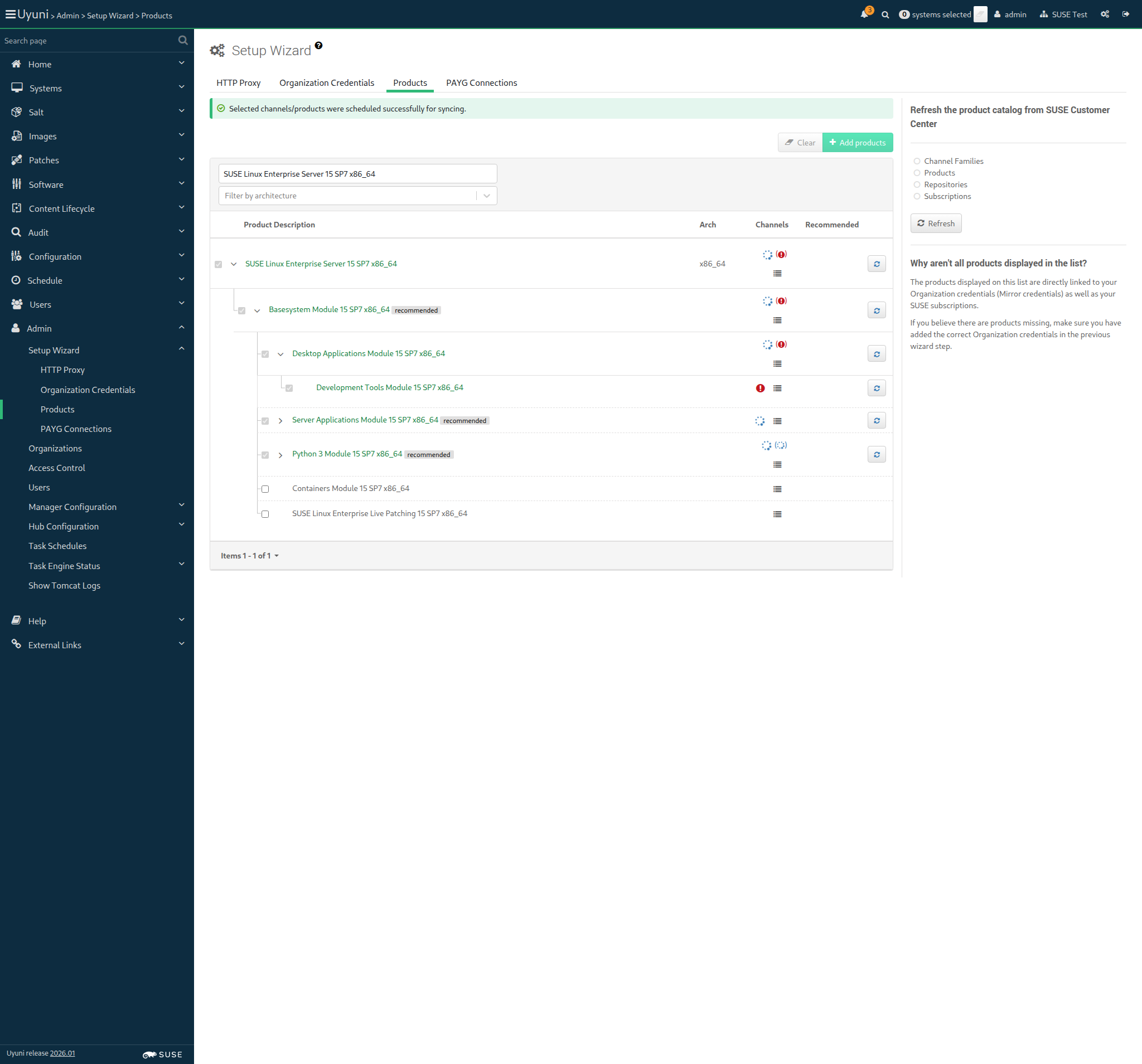
And I wait until all synchronized channels for "sles15-sp7" have finished 41m Show Error +
                                            
Hit timeout during reposync. These channels did not complete: ["sle-module-devtools15-sp7-updates-x86_64"] (ScriptError) ./features/step_definitions/command_steps.rb:482:in `rescue in block in (top (required))' ./features/step_definitions/command_steps.rb:462:in `/^I wait until all synchronized channels for "([^"]*)" have finished$/' features/reposync/srv_sync_products.feature:113:in `I wait until all synchronized channels for "sles15-sp7" have finished'

17s 169ms Show Info +
12:38:07:000 - 13:19:29:000 | Current URL: https://uyuni-master-server.sumaci.aws/rhn/manager/admin/setup/products
Screenshot +


@proxy @susemanager @transactional_server
Scenario:
Add SL Micro 6.1 as base OS for proxy
< 1ms 13

Given I am authorized for the "Admin" section 0s

When I follow the left menu "Admin > Setup Wizard > Products" 0s

And I wait until I do not see "currently running" text 0s

And I wait until I do not see "Loading" text 0s

And I enter "SUSE Linux Micro 6.1" as the filtered product description 0s

And I select "SUSE Linux Micro 6.1 x86_64" as a product 0s

Then I should see the "SUSE Linux Micro 6.1 x86_64" selected 0s

When I open the sub-list of the product "SUSE Linux Micro 6.1 x86_64" 0s

And I open the sub-list of the product "SUSE Multi-Linux Manager Client Tools for SL Micro 6 x86_64" if present 0s

And I click the Add Product button 0s

And I wait until I see "Selected channels/products were scheduled successfully for syncing." text 0s

And I wait until I see "SUSE Linux Micro 6.1 x86_64" product has been added 0s

And I wait until all synchronized channels for "sl-micro-6.1" have finished 0s

@proxy @susemanager @skip_if_transactional_server
Scenario:
Add SLES 15 SP7 as base OS for proxy
< 1ms 11

Given I am authorized for the "Admin" section 0s

When I follow the left menu "Admin > Setup Wizard > Products" 0s

And I wait until I do not see "currently running" text 0s

And I wait until I do not see "Loading" text 0s

And I enter "SUSE Linux Enterprise Server 15 SP7" as the filtered product description 0s

And I select "SUSE Linux Enterprise Server 15 SP7 (BETA)" as a product 0s

Then I should see the "SUSE Linux Enterprise Server 15 SP7 (BETA)" selected 0s

When I click the Add Product button 0s

And I wait until I see "Selected channels/products were scheduled successfully for syncing." text 0s

And I wait until I see "SUSE Linux Enterprise Server 15 SP7 (BETA)" product has been added 0s

And I wait until all synchronized channels for "sles15-sp7" have finished 0s

Given I am authorized for the "Admin" section 0s

When I follow the left menu "Admin > Setup Wizard > Products" 0s

And I wait until I do not see "currently running" text 0s

And I wait until I do not see "Loading" text 0s

And I enter "SUSE Linux Micro 6.1" as the filtered product description 0s

When I open the sub-list of the product "SUSE Linux Micro 6.1 x86_64" 0s

And I select "SUSE Linux Micro 6.1 x86_64" as a product 0s

And I select "SUSE Multi-Linux Manager Proxy Extension 5.1 x86_64" as a product 0s

Then I should see the "SUSE Multi-Linux Manager Proxy Extension 5.1 x86_64" selected 0s

When I click the Add Product button 0s

And I wait until I see "Selected channels/products were scheduled successfully for syncing." text 0s

And I wait until I see "SUSE Multi-Linux Manager Proxy Extension 5.1 x86_64" product has been added 0s

And I wait until all synchronized channels for "suse-multi-linux-manager-proxy-51" have finished 0s

Given I am authorized for the "Admin" section 0s

When I follow the left menu "Admin > Setup Wizard > Products" 0s

And I wait until I do not see "currently running" text 0s

And I wait until I do not see "Loading" text 0s

And I enter "SUSE Linux Enterprise Server 15 SP7" as the filtered product description 0s

When I open the sub-list of the product "SUSE Linux Enterprise Server 15 SP7 x86_64" 0s

And I select "SUSE Multi-Linux Manager Proxy Extension 5.1 x86_64" as a product 0s

Then I should see the "SUSE Multi-Linux Manager Proxy Extension 5.1 x86_64" selected 0s

When I click the Add Product button 0s

And I wait until I see "Selected channels/products were scheduled successfully for syncing." text 0s

And I wait until I see "SUSE Multi-Linux Manager Proxy Extension 5.1 x86_64" product has been added 0s

And I wait until all synchronized channels for "suse-multi-linux-manager-proxy-51-sp7" have finished 0s

Given I am authorized for the "Admin" section 0s

When I follow the left menu "Admin > Setup Wizard > Products" 0s

And I wait until I do not see "currently running" text 0s

And I wait until I do not see "Loading" text 0s

And I enter "SUSE Linux Micro 6.1" as the filtered product description 0s

When I open the sub-list of the product "SUSE Linux Micro 6.1 x86_64" 0s

And I select "SUSE Linux Micro 6.1 x86_64" as a product 0s

And I select "SUSE Multi-Linux Manager Retail Branch Server Extension 5.1 x86_64" as a product 0s

Then I should see the "SUSE Multi-Linux Manager Retail Branch Server Extension 5.1 x86_64" selected 0s

When I click the Add Product button 0s

And I wait until I see "Selected channels/products were scheduled successfully for syncing." text 0s

And I wait until I see "SUSE Multi-Linux Manager Retail Branch Server Extension 5.1 x86_64" product has been added 0s

And I wait until all synchronized channels for "suse-multi-linux-manager-retail-branch-server-51" have finished 0s

Given I am authorized for the "Admin" section 0s

When I follow the left menu "Admin > Setup Wizard > Products" 0s

And I wait until I do not see "currently running" text 0s

And I wait until I do not see "Loading" text 0s

And I enter "SUSE Linux Enterprise Server 15 SP7" as the filtered product description 0s

When I open the sub-list of the product "SUSE Linux Enterprise Server 15 SP7 x86_64" 0s

And I select "SUSE Multi-Linux Manager Retail Branch Server Extension 5.1 x86_64" as a product 0s

Then I should see the "SUSE Multi-Linux Manager Retail Branch Server Extension 5.1 x86_64" selected 0s

When I click the Add Product button 0s

And I wait until I see "Selected channels/products were scheduled successfully for syncing." text 0s

And I wait until I see "SUSE Multi-Linux Manager Retail Branch Server Extension 5.1 x86_64" product has been added 0s

And I wait until all synchronized channels for "suma-retail-branch-server-extension-51-sp7" have finished 0s

When I execute mgr-sync "list channels" with user "admin" and password "admin" 0s

And I should get " [I] SLE15-SP7-Installer-Updates for x86_64 SUSE Linux Enterprise Server 15 SP7 x86_64 [sle15-sp7-installer-updates-x86_64]" 0s

@scc_credentials @skip_if_github_validation
Scenario:
Detect product loading issues from the UI
33s 312ms 7 1

Given I am authorized for the "Admin" section 880ms

When I follow the left menu "Admin > Setup Wizard > Products" 185ms

And I wait until I see "Setup Wizard" text 79ms

And I wait until I do not see "Loading" text 1s 192ms

Then I should not see a "Operation not successful" text 122ms

And I select "250" from "pageSize" 1s 127ms

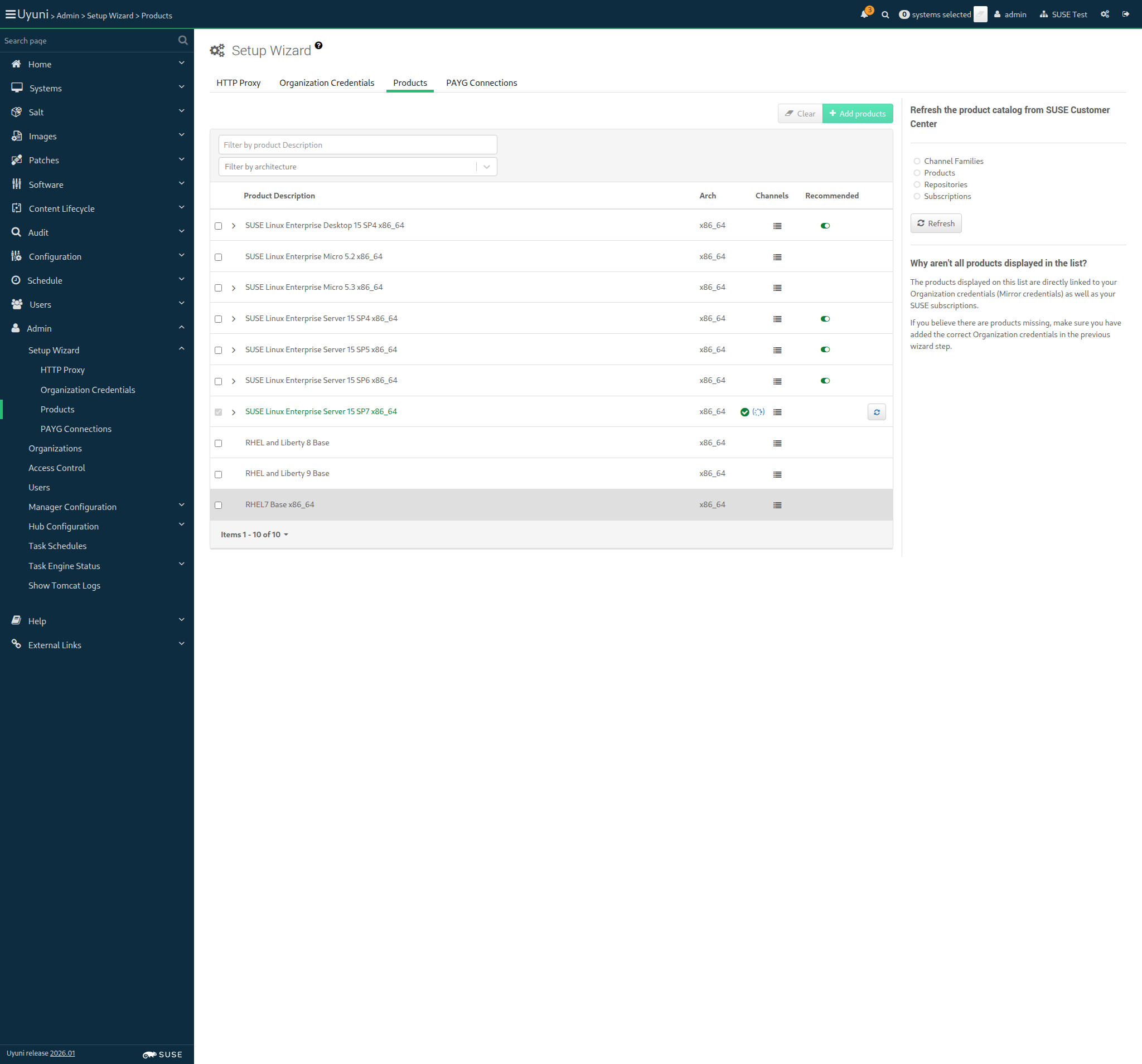
And I should only see success signs in the product list 13s 993ms Show Error +
                                            
At least one product is not fully synchronized (ScriptError) ./features/step_definitions/navigation_steps.rb:856:in `/^I should only see success signs in the product list$/' features/reposync/srv_sync_products.feature:236:in `I should only see success signs in the product list'

15s 732ms Show Info +
13:19:47:000 - 13:20:06:000 | Current URL: https://uyuni-master-server.sumaci.aws/rhn/manager/admin/setup/products
Screenshot +


When I report the synchronization duration for "sles15-sp7" < 1ms

In Order to distribute software to the clients
As an authorized user
I want to create fake channels for each distribution

Given I am authorized for the "Admin" section 833ms

When I follow the left menu "Software > Manage > Channels" 182ms

And I follow "Create Channel" 689ms

And I enter "Fake-Base-Channel-SUSE-like" as "Channel Name" 90ms

And I enter "fake-base-channel-suse-like" as "Channel Label" 81ms

And I select "None" from "Parent Channel" 51ms

And I select "x86_64" from "Architecture:" 44ms

And I enter "Base channel for testing" as "Channel Summary" 78ms

And I enter "No more description for base channel." as "Channel Description" 88ms

And I click on "Create Channel" 74ms

Then I should see a "Channel Fake-Base-Channel-SUSE-like created." text 77ms

When I follow the left menu "Software > Manage > Channels" 72ms

And I follow "Create Channel" 632ms

And I enter "Fake-Child-Channel-SUSE-like" as "Channel Name" 80ms

And I enter "fake-child-channel-suse-like" as "Channel Label" 75ms

And I select "Fake-Base-Channel-SUSE-like" from "Parent Channel" 65ms

And I select "x86_64" from "Architecture:" 35ms

And I enter "Child channel for testing" as "Channel Summary" 72ms

And I enter "Description for Fake Child Channel SUSE like." as "Channel Description" 87ms

And I click on "Create Channel" 1s 6ms

Then I should see a "Channel Fake-Child-Channel-SUSE-like created." text 75ms

When I follow the left menu "Software > Manage > Channels" 70ms

And I follow "Create Channel" 566ms

And I enter "Fake-RPM-SUSE-Channel" as "Channel Name" 73ms

And I enter "fake-rpm-suse-channel" as "Channel Label" 70ms

And I select the parent channel for the "sle_minion" from "Parent Channel" 46ms

And I select "x86_64" from "Architecture:" 34ms

And I enter "Fake-RPM-SUSE-Channel for testing" as "Channel Summary" 80ms

And I enter "Description for Fake-RPM-SUSE-Channel Child Channel." as "Channel Description" 95ms

And I click on "Create Channel" 955ms

Then I should see a "Channel Fake-RPM-SUSE-Channel created." text 77ms

When I follow the left menu "Software > Manage > Channels" 71ms

And I follow "Create Channel" 703ms

And I enter "Fake-Base-Channel-i586" as "Channel Name" 72ms

And I enter "fake-base-channel-i586" as "Channel Label" 68ms

And I select "None" from "Parent Channel" 39ms

And I select "IA-32" from "Architecture:" 51ms

And I enter "Fake-Base-Channel-i586 channel for testing" as "Channel Summary" 91ms

And I enter "No more description for base channel." as "Channel Description" 83ms

And I click on "Create Channel" 56ms

Then I should see a "Channel Fake-Base-Channel-i586 created." text 995ms

When I follow the left menu "Software > Manage > Channels" 68ms

And I follow "Create Channel" 422ms

And I enter "Fake-Child-Channel-i586" as "Channel Name" 72ms

And I enter "fake-child-channel-i586" as "Channel Label" 69ms

And I select "Fake-Base-Channel-i586" from "Parent Channel" 61ms

And I select "IA-32" from "Architecture:" 34ms

And I enter "Fake Child Channel i586 for testing" as "Channel Summary" 85ms

And I enter "Description for Fake Child Channel i586." as "Channel Description" 82ms

And I click on "Create Channel" 54ms

Then I should see a "Channel Fake-Child-Channel-i586 created." text 81ms

When I follow the left menu "Software > Manage > Channels" 69ms

And I follow "Create Channel" 490ms

And I enter "Test-Base-Channel-x86_64" as "Channel Name" 75ms

And I enter "test-base-channel-x86_64" as "Channel Label" 72ms

And I select "None" from "Parent Channel" 39ms

And I select "x86_64" from "Architecture:" 32ms

And I enter "Test-Base-Channel-x86_64 channel for testing" as "Channel Summary" 90ms

And I enter "No more description for base channel." as "Channel Description" 80ms

And I click on "Create Channel" 55ms

Then I should see a "Channel Test-Base-Channel-x86_64 created." text 75ms

When I follow the left menu "Software > Manage > Channels" 71ms

And I follow "Create Channel" 665ms

And I enter "Test-Child-Channel-x86_64" as "Channel Name" 76ms

And I enter "test-child-channel-x86_64" as "Channel Label" 74ms

And I select "Test-Base-Channel-x86_64" from "Parent Channel" 59ms

And I select "x86_64" from "Architecture:" 36ms

And I enter "Test-Child-Channel-x86_64 channel for testing" as "Channel Summary" 92ms

And I enter "Description for Test-Child-Channel-x86_64 Channel." as "Channel Description" 92ms

And I click on "Create Channel" 53ms

Then I should see a "Channel Test-Child-Channel-x86_64 created." text 86ms

When I follow the left menu "Software > Manage > Channels" 0s

And I follow "Create Channel" 0s

And I enter "Fake-RPM-Terminal-Channel" as "Channel Name" 0s

And I enter "fake-rpm-terminal-channel" as "Channel Label" 0s

And I select the parent channel for the "pxeboot_minion" from "Parent Channel" 0s

And I select "x86_64" from "Architecture:" 0s

And I enter "Fake-RPM-Terminal-Channel for testing" as "Channel Summary" 0s

And I enter "Description for Fake-RPM-Terminal-Channel Child Channel." as "Channel Description" 0s

And I click on "Create Channel" 0s

Then I should see a "Channel Fake-RPM-Terminal-Channel created." text 0s

When I follow the left menu "Software > Manage > Channels" 70ms

And I follow "Create Channel" 672ms

And I enter "Fake-Base-Channel-Debian-like" as "Channel Name" 79ms

And I enter "fake-base-channel-debian-like" as "Channel Label" 77ms

And I select "None" from "Parent Channel" 40ms

And I select "AMD64 Debian" from "Architecture:" 53ms

And I enter "Fake-Base-Channel-Debian-like for testing" as "Channel Summary" 89ms

And I enter "No more description for base channel." as "Channel Description" 79ms

And I uncheck "gpg_check" 10s 65ms

And I click on "Create Channel" 919ms

Then I should see a "Channel Fake-Base-Channel-Debian-like created." text 77ms

When I follow the left menu "Software > Manage > Channels" 72ms

And I follow "Create Channel" 424ms

And I enter "Fake-Base-Channel-RH-like" as "Channel Name" 77ms

And I enter "fake-base-channel-rh-like" as "Channel Label" 73ms

And I select "None" from "Parent Channel" 38ms

And I select "x86_64" from "Architecture:" 39ms

And I enter "Fake-Base-Channel-RH-like for testing" as "Channel Summary" 83ms

And I enter "No more description for base channel." as "Channel Description" 78ms

And I click on "Create Channel" 56ms

Then I should see a "Channel Fake-Base-Channel-RH-like created." text 80ms

When I follow the left menu "Software > Manage > Channels" 69ms

And I follow "Create Channel" 529ms

And I enter "Fake-Base-Channel-AppStream" as "Channel Name" 79ms

And I enter "fake-base-channel-appstream" as "Channel Label" 73ms

And I select "None" from "Parent Channel" 38ms

And I select "x86_64" from "Architecture:" 34ms

And I enter "Fake-Base-Channel-AppStream for testing" as "Channel Summary" 86ms

And I enter "Description for Fake-Base-Channel-AppStream." as "Channel Description" 88ms

And I click on "Create Channel" 54ms

Then I should see a "Channel Fake-Base-Channel-AppStream created." text 78ms

In order to distribute software to the clients
As an authorized user
I want to create a fake repository per fake child channel

Given I am authorized for the "Admin" section 1s 21ms

When I follow the left menu "Software > Manage > Repositories" 170ms

And I follow "Create Repository" 597ms

And I enter "fake-rpm-repo" as "label" 58ms

And I enter "http://localhost/pub/TestRepoRpmUpdates/" as "url" 83ms

And I click on "Create Repository" 674ms

Then I should see a "Repository created successfully" text 63ms

And I should see "metadataSigned" as checked 18ms

When I follow the left menu "Software > Manage > Repositories" 69ms

And I follow "fake-rpm-repo" 461ms

And I uncheck "metadataSigned" 10s 78ms

And I click on "Update Repository" 764ms

Then I should see a "Repository updated successfully" text 63ms

And I should see "metadataSigned" as unchecked 14ms

When I follow the left menu "Software > Manage > Repositories" 65ms

And I follow "Create Repository" 666ms

And I enter "fake-appstream-repo" as "label" 61ms

And I enter "http://localhost/pub/TestRepoAppStream/" as "url" 84ms

And I click on "Create Repository" 852ms

Then I should see a "Repository created successfully" text 63ms

And I should see "metadataSigned" as checked 15ms

When I follow the left menu "Software > Manage > Repositories" 67ms

And I follow "fake-appstream-repo" 451ms

And I uncheck "metadataSigned" 10s 73ms

And I click on "Update Repository" 698ms

Then I should see a "Repository updated successfully" text 64ms

And I should see "metadataSigned" as unchecked 15ms

When I follow the left menu "Software > Manage > Channels" 73ms

And I follow "Fake-RPM-SUSE-Channel" 631ms

And I enter "file:///etc/pki/rpm-gpg/uyuni-tools-gpg-pubkey-0d20833e.key" as "GPG key URL" 113ms

And I click on "Update Channel" 968ms

Then I should see a "Channel Fake-RPM-SUSE-Channel updated" text 73ms

When I follow "Repositories" in the content area 67ms

And I select the "fake-rpm-repo" repo 57ms

And I click on "Save Repositories" 949ms

Then I should see a "Fake-RPM-SUSE-Channel repository information was successfully updated" text 73ms

When I follow the left menu "Software > Manage > Channels" 66ms

And I follow "Test-Child-Channel-x86_64" 529ms

And I enter "file:///etc/pki/rpm-gpg/uyuni-tools-gpg-pubkey-0d20833e.key" as "GPG key URL" 108ms

And I click on "Update Channel" 54ms

Then I should see a "Channel Test-Child-Channel-x86_64 updated" text 1s 121ms

When I follow "Repositories" in the content area 60ms

And I select the "fake-rpm-repo" repo 50ms

And I click on "Save Repositories" 1s 165ms

Then I should see a "Test-Child-Channel-x86_64 repository information was successfully updated" text 71ms

When I follow the left menu "Software > Manage > Channels" 67ms

And I follow "Fake-Base-Channel-RH-like" 506ms

And I enter "file:///etc/pki/rpm-gpg/uyuni-tools-gpg-pubkey-0d20833e.key" as "GPG key URL" 106ms

And I click on "Update Channel" 969ms

Then I should see a "Channel Fake-Base-Channel-RH-like updated" text 76ms

When I follow "Repositories" in the content area 66ms

And I select the "fake-rpm-repo" repo 73ms

And I click on "Save Repositories" 1s 325ms

Then I should see a "Fake-Base-Channel-RH-like repository information was successfully updated" text 73ms

When I follow the left menu "Software > Manage > Channels" 66ms

And I follow "Fake-Base-Channel-AppStream" 620ms

And I enter "file:///etc/pki/rpm-gpg/uyuni-tools-gpg-pubkey-0d20833e.key" as "GPG key URL" 106ms

And I click on "Update Channel" 974ms

Then I should see a "Channel Fake-Base-Channel-AppStream updated" text 75ms

When I follow "Repositories" in the content area 59ms

And I select the "fake-appstream-repo" repo 55ms

And I click on "Save Repositories" 1s 175ms

Then I should see a "Fake-Base-Channel-AppStream repository information was successfully updated" text 73ms

When I follow the left menu "Software > Manage > Repositories" 70ms

And I follow "Create Repository" 372ms

And I enter "fake-i586-repo" as "label" 80ms

And I enter "file:///srv/www/htdocs/pub/TestRepoRpmUpdates/" as "url" 89ms

And I uncheck "metadataSigned" 10s 77ms

And I click on "Create Repository" 678ms

Then I should see a "Repository created successfully" text 67ms

When I follow the left menu "Software > Manage > Channels" 73ms

And I follow "Fake-Child-Channel-i586" 518ms

And I enter "file:///etc/pki/rpm-gpg/uyuni-tools-gpg-pubkey-0d20833e.key" as "GPG key URL" 112ms

And I click on "Update Channel" 856ms

Then I should see a "Channel Fake-Child-Channel-i586 updated" text 75ms

When I follow "Repositories" in the content area 72ms

And I select the "fake-i586-repo" repo 57ms

And I click on "Save Repositories" 823ms

Then I should see a "Fake-Child-Channel-i586 repository information was successfully updated" text 75ms

When I follow the left menu "Software > Manage > Channels" 68ms

And I follow "Fake-Child-Channel-SUSE-like" 528ms

And I follow "Repositories" in the content area 61ms

And I select the "fake-rpm-repo" repo 70ms

And I click on "Save Repositories" 792ms

Then I should see a "Fake-Child-Channel-SUSE-like repository information was successfully updated" text 72ms

When I follow the left menu "Software > Manage > Repositories" 71ms

And I follow "Create Repository" 398ms

And I enter "fake-debian-repo" as "label" 67ms

And I select "deb" from "contenttype" 65ms

And I enter "http://localhost/pub/TestRepoDebUpdates/" as "url" 87ms

And I click on "Create Repository" 748ms

Then I should see a "Repository created successfully" text 62ms

When I follow the left menu "Software > Manage > Channels" 70ms

And I follow "Fake-Base-Channel-Debian-like" 551ms

And I follow "Repositories" in the content area 59ms

And I select the "fake-debian-repo" repo 55ms

And I click on "Save Repositories" 815ms

Then I should see a "Fake-Base-Channel-Debian-like repository information was successfully updated" text 73ms

When I follow the left menu "Software > Manage > Channels" 0s

And I follow "Fake-RPM-Terminal-Channel" 0s

And I enter "file:///etc/pki/rpm-gpg/uyuni-tools-gpg-pubkey-0d20833e.key" as "GPG key URL" 0s

And I click on "Update Channel" 0s

Then I should see a "Channel Fake-RPM-Terminal-Channel updated" text 0s

When I follow "Repositories" in the content area 0s

And I select the "fake-rpm-repo" repo 0s

And I click on "Save Repositories" 0s

Then I should see a "Fake-RPM-Terminal-Channel repository information was successfully updated" text 0s

In Order to use product packages in development to the clients
As an authorized user
I want to create custom channels for each distribution

Given I am authorized for the "Admin" section 785ms

When I follow the left menu "Software > Manage > Channels" 168ms

And I follow "Create Channel" 531ms

And I enter "Devel-SUSE-Channel" as "Channel Name" 74ms

And I enter "devel-suse-channel" as "Channel Label" 72ms

And I select the parent channel for the "sle_minion" from "Parent Channel" 53ms

And I select "x86_64" from "Architecture:" 43ms

And I enter "Devel-SUSE-Channel for development repositories" as "Channel Summary" 100ms

And I enter "Channel containing development repositories" as "Channel Description" 93ms

And I click on "Create Channel" 884ms

Then I should see a "Channel Devel-SUSE-Channel created." text 73ms

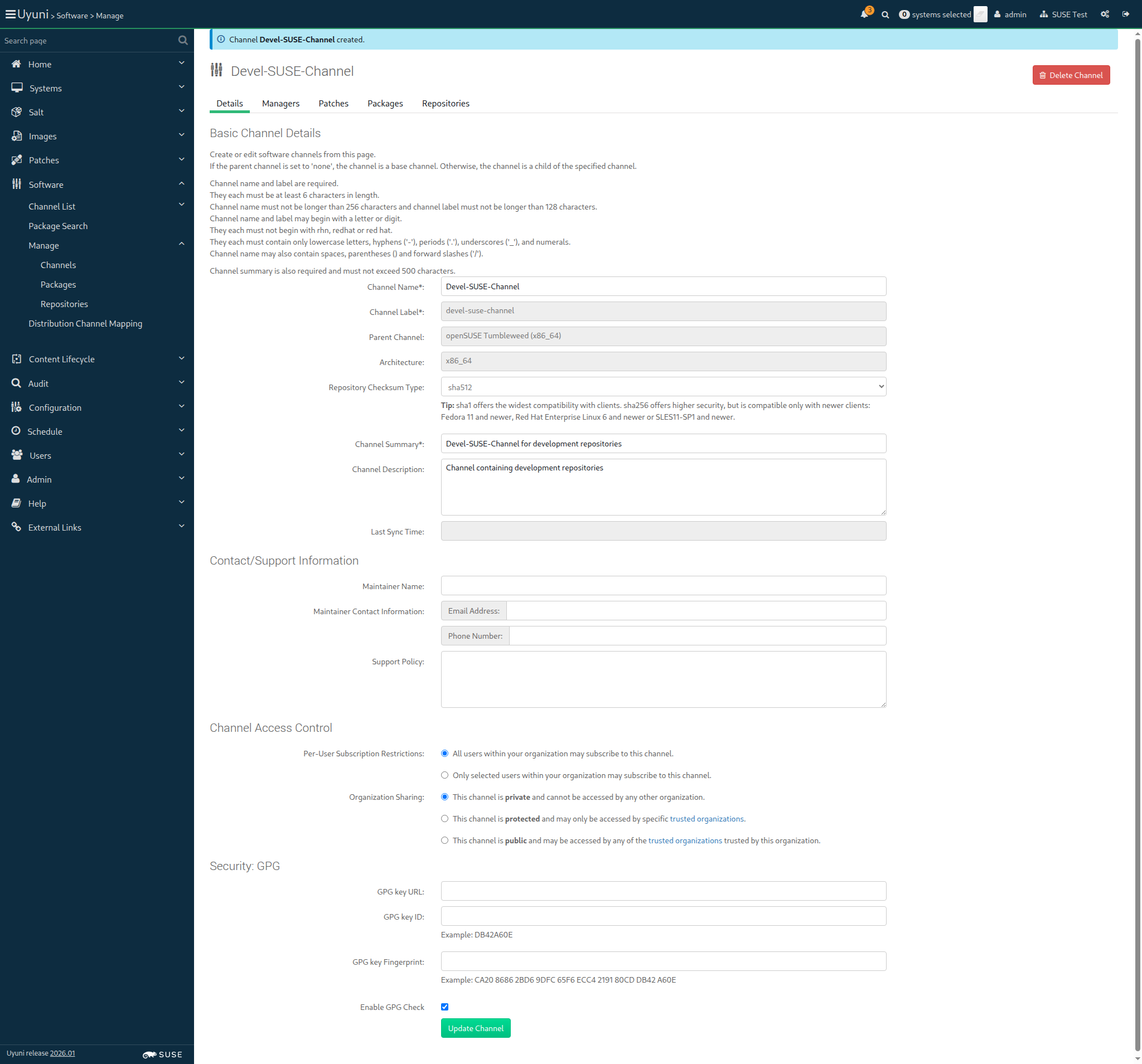
When I prepare the development repositories of "sle_minion" as part of "devel-suse-channel" channel 1s 650ms Show Error +
                                            
No FQDN for 'uyuni-master-suse-minion'. Response code: (StandardError) ./features/support/remote_node.rb:46:in `initialize' ./features/support/remote_nodes_env.rb:39:in `new' ./features/support/remote_nodes_env.rb:39:in `get_target' ./features/step_definitions/setup_steps.rb:534:in `/^I prepare the development repositories of "([^"]*)" as part of "([^"]*)" channel$/' features/reposync/srv_create_devel_channels.feature:28:in `I prepare the development repositories of "sle_minion" as part of "devel-suse-channel" channel'

15s 396ms Show Info +
13:22:15:000 - 13:22:17:000 | Current URL: https://uyuni-master-server.sumaci.aws/rhn/channels/manage/Edit.do?cid=131
Screenshot +


When I follow the left menu "Software > Manage > Channels" 75ms

And I follow "Create Channel" 617ms

And I enter "Devel-Build-Host-Channel" as "Channel Name" 76ms

And I enter "devel-build-host-channel" as "Channel Label" 71ms

And I select the parent channel for the "build_host" from "Parent Channel" 45ms

And I select "x86_64" from "Architecture:" 32ms

And I enter "Devel-Build-Host-Channel for development repositories" as "Channel Summary" 99ms

And I enter "Channel containing development repositories" as "Channel Description" 82ms

And I click on "Create Channel" 1s 331ms

Then I should see a "Channel Devel-Build-Host-Channel created." text 73ms

When I prepare the development repositories of "build_host" as part of "devel-build-host-channel" channel 6s 300ms

When I follow the left menu "Software > Manage > Channels" 70ms

And I follow "Create Channel" 535ms

And I enter "Devel-Debian-like-Channel" as "Channel Name" 75ms

And I enter "devel-debian-like-channel" as "Channel Label" 73ms

And I select "Fake-Base-Channel-Debian-like" from "Parent Channel" 61ms

And I select "AMD64 Debian" from "Architecture:" 42ms

And I enter "Devel-Debian-like-Channel for development repositories" as "Channel Summary" 99ms

And I enter "Channel containing development repositories" as "Channel Description" 84ms

And I click on "Create Channel" 54ms

Then I should see a "Channel Devel-Debian-like-Channel created." text 79ms

When I prepare the development repositories of "deblike_minion" as part of "devel-debian-like-channel" channel 9s 664ms

When I follow the left menu "Software > Manage > Channels" 71ms

And I follow "Create Channel" 653ms

And I enter "Devel-RH-like-Channel" as "Channel Name" 73ms

And I enter "devel-rh-like-channel" as "Channel Label" 70ms

And I select "Fake-Base-Channel-RH-like" from "Parent Channel" 58ms

And I select "x86_64" from "Architecture:" 43ms

And I enter "Devel-RH-like-Channel for development repositories" as "Channel Summary" 98ms

And I enter "Channel containing development repositories" as "Channel Description" 106ms

And I click on "Create Channel" 60ms

Then I should see a "Channel Devel-RH-like-Channel created." text 80ms

When I prepare the development repositories of "rhlike_minion" as part of "devel-rh-like-channel" channel 7s 353ms

In order to use the content provided inside the repositories of the fake channels
As admin
I want to synchronize the fake channels

Given I am authorized for the "Admin" section 776ms

And I enable source package syncing 1s 663ms

Given I am authorized for the "Admin" section 744ms

When I follow the left menu "Software > Manage > Channels" 166ms

And I follow "Fake-RPM-SUSE-Channel" 858ms

And I follow "Repositories" in the content area 73ms

And I follow "Sync" 589ms

And I wait at most 60 seconds until I do not see "Repository sync is running." text, refreshing the page 71ms

And I click on "Sync Now" 2s 754ms

Then I should see a "Repository sync scheduled for Fake-RPM-SUSE-Channel." text 66ms

And I wait until the channel "fake-rpm-suse-channel" has been synced 739ms

Then "orion-dummy-1.1-1.1.x86_64.rpm" package should have been stored 5s 131ms

And solver file for "fake-rpm-suse-channel" should reference "orion-dummy-1.1-1.1.x86_64.rpm" 3m 40s 762ms

Given I am authorized for the "Admin" section 764ms

When I follow the left menu "Software > Manage > Channels" 155ms

And I follow "Fake-Child-Channel-i586" 376ms

And I follow "Repositories" in the content area 56ms

And I follow "Sync" 337ms

And I wait at most 60 seconds until I do not see "Repository sync is running." text, refreshing the page 65ms

And I click on "Sync Now" 1s 793ms

Then I should see a "Repository sync scheduled for Fake-Child-Channel-i586." text 65ms

And I wait until the channel "fake-child-channel-i586" has been synced 440ms

Given I am authorized for the "Admin" section 464ms

When I follow the left menu "Software > Manage > Channels" 150ms

And I follow "Test-Child-Channel-x86_64" 368ms

And I follow "Repositories" in the content area 54ms

And I follow "Sync" 761ms

And I wait at most 60 seconds until I do not see "Repository sync is running." text, refreshing the page 67ms

And I click on "Sync Now" 1s 768ms

Then I should see a "Repository sync scheduled for Test-Child-Channel-x86_64." text 68ms

And I wait until the channel "test-child-channel-x86_64" has been synced 504ms

Given I am authorized for the "Admin" section 542ms

When I follow the left menu "Software > Manage > Channels" 152ms

And I follow "Fake-Child-Channel-SUSE-like" 378ms

And I follow "Repositories" in the content area 54ms

And I follow "Sync" 607ms

And I wait at most 60 seconds until I do not see "Repository sync is running." text, refreshing the page 66ms

And I click on "Sync Now" 1s 853ms

Then I should see a "Repository sync scheduled for Fake-Child-Channel-SUSE-like." text 65ms

And I wait until the channel "fake-child-channel-suse-like" has been synced 373ms

Given I am authorized for the "Admin" section 454ms

When I follow the left menu "Software > Manage > Channels" 153ms

And I follow "Fake-Base-Channel-Debian-like" 374ms

And I follow "Repositories" in the content area 53ms

And I follow "Sync" 857ms

And I wait at most 60 seconds until I do not see "Repository sync is running." text, refreshing the page 65ms

And I click on "Sync Now" 1s 752ms

Then I should see a "Repository sync scheduled for Fake-Base-Channel-Debian-like." text 64ms

And I wait until the channel "fake-base-channel-debian-like" has been synced 372ms

Given I am authorized for the "Admin" section 473ms

When I follow the left menu "Software > Manage > Channels" 162ms

And I follow "Fake-Base-Channel-RH-like" 373ms

And I follow "Repositories" in the content area 56ms

And I follow "Sync" 848ms

And I wait at most 60 seconds until I do not see "Repository sync is running." text, refreshing the page 71ms

And I click on "Sync Now" 1s 815ms

Then I should see a "Repository sync scheduled for Fake-Base-Channel-RH-like." text 69ms

And I wait until the channel "fake-base-channel-rh-like" has been synced 387ms

Given I am authorized for the "Admin" section 468ms

When I follow the left menu "Software > Manage > Channels" 152ms

And I follow "Fake-Base-Channel-AppStream" 375ms

And I follow "Repositories" in the content area 57ms

And I follow "Sync" 676ms

And I wait at most 60 seconds until I do not see "Repository sync is running." text, refreshing the page 75ms

And I click on "Sync Now" 1s 774ms

Then I should see a "Repository sync scheduled for Fake-Base-Channel-AppStream." text 65ms

And I wait until the channel "fake-base-channel-appstream" has been synced 393ms

Given I am authorized for the "Admin" section 0s

And I follow the left menu "Software > Manage > Channels" 0s

And I follow "Fake-RPM-Terminal-Channel" 0s

And I follow "Repositories" in the content area 0s

And I follow "Sync" 0s

And I wait at most 60 seconds until I do not see "Repository sync is running." text, refreshing the page 0s

And I click on "Sync Now" 0s

Then I should see a "Repository sync scheduled for Fake-RPM-Terminal-Channel." text 0s

And I wait until the channel "fake-rpm-terminal-channel" has been synced 0s

Then "orion-dummy-1.1-1.1.x86_64.rpm" package should have been stored 0s

And solver file for "fake-rpm-terminal-channel" should reference "orion-dummy-1.1-1.1.x86_64.rpm" 0s

When I follow the left menu "Admin > Task Schedules" 112ms

And I follow "errata-cache-default" 1s 322ms

And I follow "errata-cache-bunch" 1s 359ms

And I click on "Single Run Schedule" 1s 251ms

Then I should see a "bunch was scheduled" text 262ms

And I wait until the table contains "FINISHED" or "SKIPPED" followed by "FINISHED" in its first rows 2s 242ms

When I follow the left menu "Admin > Task Schedules" 65ms

And I follow "channel-repodata-default" 360ms

And I follow "channel-repodata-bunch" 1s 262ms

And I click on "Single Run Schedule" 1s 363ms

Then I should see a "bunch was scheduled" text 199ms

And I wait until the table contains "FINISHED" or "SKIPPED" followed by "FINISHED" in its first rows 1s 865ms

Then I disable source package syncing 978ms

In order to use the content provided inside the repositories of the dev channels
As admin
I want to synchronize the dev channels

Given I am authorized for the "Admin" section 431ms

When I follow the left menu "Software > Manage > Channels" 177ms

And I follow "Devel-SUSE-Channel" 300ms

And I follow "Repositories" in the content area 69ms

And I follow "Sync" 677ms

And I wait at most 60 seconds until I do not see "Repository sync is running." text, refreshing the page 62ms

And I click on "Sync Now" 1s 176ms

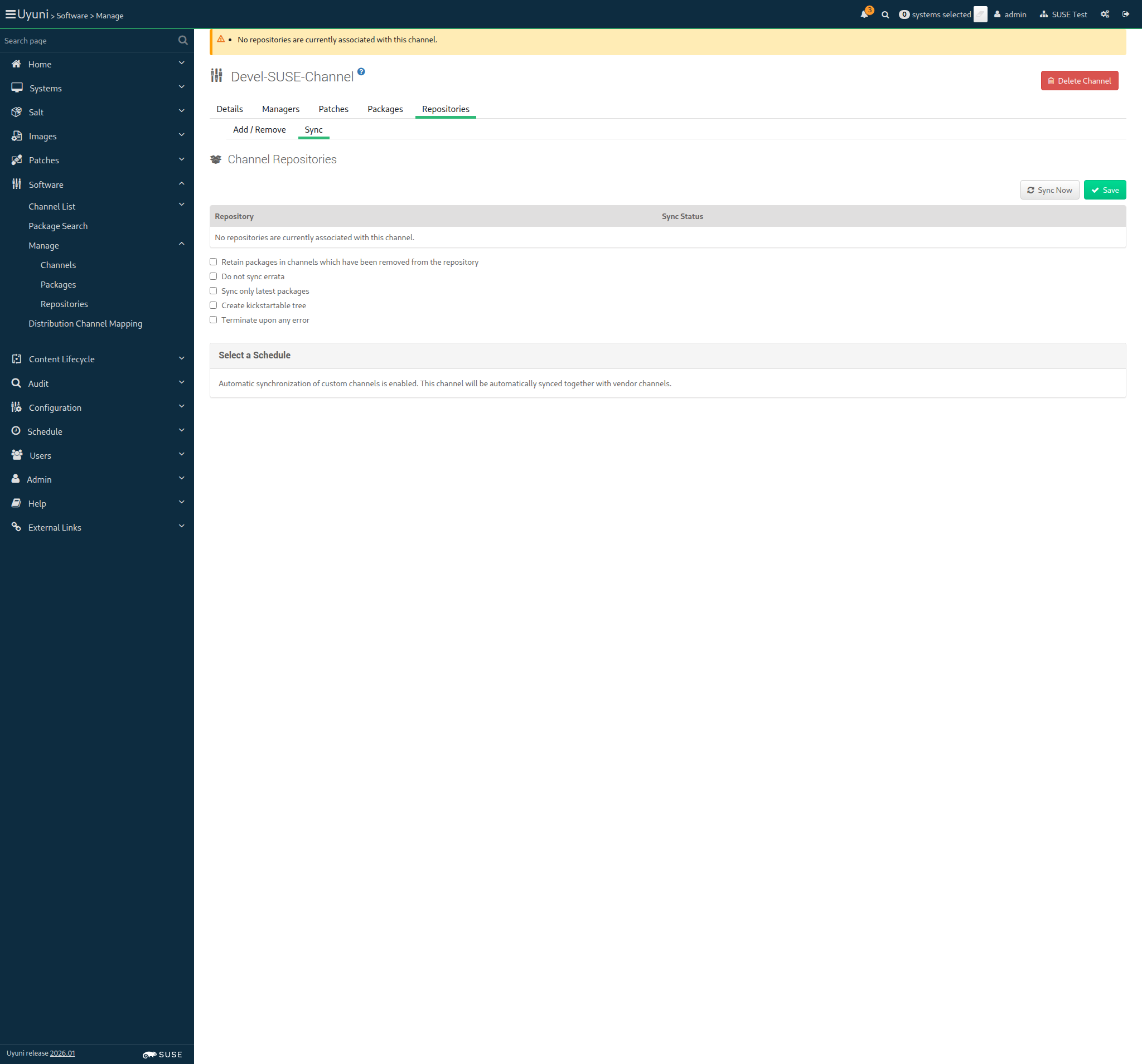
Then I should see a "Repository sync scheduled for Devel-SUSE-Channel." text 10s 38ms Show Error +
                                            
Text 'Repository sync scheduled for Devel-SUSE-Channel.' not found (ScriptError) ./features/step_definitions/navigation_steps.rb:662:in `/^I should see a "([^"]*)" text$/' features/reposync/srv_sync_devel_channels.feature:19:in `I should see a "Repository sync scheduled for Devel-SUSE-Channel." text'

And I wait until the channel "devel-suse-channel" has been synced 0s

13s 365ms Show Info +
13:27:46:000 - 13:28:00:000 | Current URL: https://uyuni-master-server.sumaci.aws/rhn/channels/manage/Sync.do?cid=131
Screenshot +


Given I am authorized for the "Admin" section 431ms

When I follow the left menu "Software > Manage > Channels" 182ms

And I follow "Devel-Debian-like-Channel" 374ms

And I follow "Repositories" in the content area 81ms

And I follow "Sync" 497ms

And I wait at most 60 seconds until I do not see "Repository sync is running." text, refreshing the page 66ms

And I click on "Sync Now" 1s 825ms

Then I should see a "Repository sync scheduled for Devel-Debian-like-Channel." text 69ms

And I wait until the channel "devel-debian-like-channel" has been synced 385ms

Given I am authorized for the "Admin" section 446ms

When I follow the left menu "Software > Manage > Channels" 148ms

And I follow "Devel-RH-like-Channel" 385ms

And I follow "Repositories" in the content area 56ms

And I follow "Sync" 846ms

And I wait at most 60 seconds until I do not see "Repository sync is running." text, refreshing the page 66ms

And I click on "Sync Now" 1s 819ms

Then I should see a "Repository sync scheduled for Devel-RH-like-Channel." text 66ms

And I wait until the channel "devel-rh-like-channel" has been synced 333ms

Given I am authorized for the "Admin" section 436ms

When I follow the left menu "Software > Manage > Channels" 149ms

And I follow "Devel-Build-Host-Channel" 388ms

And I follow "Repositories" in the content area 57ms

And I follow "Sync" 1s 96ms

And I wait at most 60 seconds until I do not see "Repository sync is running." text, refreshing the page 69ms

And I click on "Sync Now" 1s 775ms

Then I should see a "Repository sync scheduled for Devel-Build-Host-Channel." text 64ms

And I wait until the channel "devel-build-host-channel" has been synced 386ms

In order to register systems to the server
As the testing user
I want to use activation keys

Given I am authorized for the "Admin" section 468ms

When I create an activation key with id "SUSE-KEY-x86_64", description "SUSE Test Key x86_64", limit of 20 and contact method "default" 1s 622ms

Then I should get the new activation key "1-SUSE-KEY-x86_64" 614ms

When I create an activation key with id "RH-LIKE-KEY", description "RedHat like Test Key", base channel "fake-base-channel-rh-like", limit of 20 and contact method "default" 1s 49ms

Then I should get the new activation key "1-RH-LIKE-KEY" 604ms

When I create an activation key with id "DEBLIKE-KEY", description "Debian-like Test Key", base channel "fake-base-channel-debian-like", limit of 20 and contact method "default" 741ms

Then I should get the new activation key "1-DEBLIKE-KEY" 711ms

When I create an activation key with id "SUSE-SSH-KEY-x86_64", description "SUSE SSH Test Key x86_64", limit of 20 and contact method "ssh-push" 792ms

Then I should get the new activation key "1-SUSE-SSH-KEY-x86_64" 790ms

When I create an activation key with id "SUSE-SSH-TUNNEL-KEY-x86_64", description "SUSE SSH Tunnel Test Key x86_64", limit of 20 and contact method "ssh-push-tunnel" 785ms

Then I should get the new activation key "1-SUSE-SSH-TUNNEL-KEY-x86_64" 1s 14ms

When I create an activation key with id "PROXY-KEY-x86_64", description "Proxy Key x86_64", limit of 1 729ms

Then I should get the new activation key "1-PROXY-KEY-x86_64" 2s 92ms

When I create an activation key with id "BUILD-HOST-KEY-x86_64", description "Build host Key x86_64" 1s 111ms

And I set the entitlements of the activation key "1-BUILD-HOST-KEY-x86_64" to "container_build_host, osimage_build_host" 484ms

Then I should get the new activation key "1-BUILD-HOST-KEY-x86_64" 1s 226ms

When I create an activation key with id "TERMINAL-KEY-x86_64", description "Terminal Key x86_64" 827ms

Then I should get the new activation key "1-TERMINAL-KEY-x86_64" 1s 491ms

In order to register systems to the spacewalk server
As admin
I want to update activation keys to use synchronized base products

Given I am authorized for the "Admin" section 450ms

When I follow the left menu "Systems > Activation Keys" 0s

And I follow "SUSE Test Key x86_64" in the content area 0s

And I wait for child channels to appear 0s

And I select the parent channel for the "sle_minion" from "selectedBaseChannel" 0s

And I wait for child channels to appear 0s

And I include the recommended child channels 0s

And I wait until "SLE-Module-Basesystem15-SP7-Pool for x86_64" has been checked 0s

And I wait until "SLE-Module-Basesystem15-SP7-Updates for x86_64" has been checked 0s

And I wait until "SLE-Module-Server-Applications15-SP7-Pool for x86_64" has been checked 0s

And I wait until "SLE-Module-Server-Applications15-SP7-Updates for x86_64" has been checked 0s

And I check "SLE-Module-DevTools15-SP7-Pool for x86_64" 0s

And I wait until "SLE-Module-DevTools15-SP7-Updates for x86_64" has been checked 0s

And I wait until "SLE-Module-Desktop-Applications15-SP7-Pool for x86_64" has been checked 0s

And I wait until "SLE-Module-Desktop-Applications15-SP7-Updates for x86_64" has been checked 0s

And I check "SLE-Module-Containers15-SP7-Pool for x86_64" 0s

And I wait until "SLE-Module-Containers15-SP7-Updates for x86_64" has been checked 0s

And I check "Fake-RPM-SUSE-Channel" 0s

And I wait until "Fake-RPM-SUSE-Channel" has been checked 0s

And I click on "Update Activation Key" 0s

Then I should see a "Activation key SUSE Test Key x86_64 has been modified" text 0s

When I follow the left menu "Systems > Activation Keys" 117ms

And I follow "SUSE Test Key x86_64" in the content area 69ms

And I wait until I do not see "Loading..." text 654ms

And I select the parent channel for the "sle_minion" from "selectedBaseChannel" 57ms

And I wait until I do not see "Loading..." text 74ms

And I check "Uyuni Client Tools for openSUSE Tumbleweed (x86_64) (Development)" 747ms

And I check "Fake-RPM-SUSE-Channel" 113ms

And I wait until "Fake-RPM-SUSE-Channel" has been checked 16ms

And I click on "Update Activation Key" 637ms

Then I should see a "Activation key SUSE Test Key x86_64 has been modified" text 76ms

When I follow the left menu "Systems > Activation Keys" 0s

And I follow "SUSE SSH Test Key x86_64" in the content area 0s

And I wait for child channels to appear 0s

And I select the parent channel for the "sle_minion" from "selectedBaseChannel" 0s

And I wait for child channels to appear 0s

And I include the recommended child channels 0s

And I check "SLE-Module-DevTools15-SP7-Pool for x86_64" 0s

And I wait until "SLE-Module-DevTools15-SP7-Updates for x86_64" has been checked 0s

And I wait until "SLE-Module-Desktop-Applications15-SP7-Pool for x86_64" has been checked 0s

And I wait until "SLE-Module-Desktop-Applications15-SP7-Updates for x86_64" has been checked 0s

And I check "Fake-RPM-SUSE-Channel" 0s

And I wait until "Fake-RPM-SUSE-Channel" has been checked 0s

And I click on "Update Activation Key" 0s

Then I should see a "Activation key SUSE SSH Test Key x86_64 has been modified" text 0s

When I follow the left menu "Systems > Activation Keys" 60ms

And I follow "SUSE SSH Test Key x86_64" in the content area 75ms

And I wait until I do not see "Loading..." text 574ms

And I select the parent channel for the "sle_minion" from "selectedBaseChannel" 39ms

And I wait until I do not see "Loading..." text 71ms

And I check "Uyuni Client Tools for openSUSE Tumbleweed (x86_64) (Development)" 561ms

And I check "Fake-RPM-SUSE-Channel" 84ms

And I wait until "Fake-RPM-SUSE-Channel" has been checked 15ms

And I click on "Update Activation Key" 582ms

Then I should see a "Activation key SUSE SSH Test Key x86_64 has been modified" text 71ms

When I follow the left menu "Systems > Activation Keys" 0s

And I follow "SUSE SSH Tunnel Test Key x86_64" in the content area 0s

And I wait for child channels to appear 0s

And I select the parent channel for the "sle_minion" from "selectedBaseChannel" 0s

And I wait for child channels to appear 0s

And I include the recommended child channels 0s

And I check "SLE-Module-DevTools15-SP7-Pool for x86_64" 0s

And I wait until "SLE-Module-DevTools15-SP7-Updates for x86_64" has been checked 0s

And I wait until "SLE-Module-Desktop-Applications15-SP7-Pool for x86_64" has been checked 0s

And I wait until "SLE-Module-Desktop-Applications15-SP7-Updates for x86_64" has been checked 0s

And I check "Fake-RPM-SUSE-Channel" 0s

And I wait until "Fake-RPM-SUSE-Channel" has been checked 0s

And I click on "Update Activation Key" 0s

Then I should see a "Activation key SUSE SSH Tunnel Test Key x86_64 has been modified" text 0s

When I follow the left menu "Systems > Activation Keys" 60ms

And I follow "SUSE SSH Tunnel Test Key x86_64" in the content area 67ms

And I wait until I do not see "Loading..." text 645ms

And I select the parent channel for the "sle_minion" from "selectedBaseChannel" 39ms

And I wait until I do not see "Loading..." text 73ms

And I check "Uyuni Client Tools for openSUSE Tumbleweed (x86_64) (Development)" 688ms

And I check "Fake-RPM-SUSE-Channel" 96ms

And I wait until "Fake-RPM-SUSE-Channel" has been checked 16ms

And I click on "Update Activation Key" 635ms

Then I should see a "Activation key SUSE SSH Tunnel Test Key x86_64 has been modified" text 75ms

@scc_credentials @susemanager @proxy @containerized_server @transactional_server
Scenario:
Update the SLE Micro proxy key with synced base product
< 1ms 11

When I follow the left menu "Systems > Activation Keys" 0s

And I follow "Proxy Key x86_64" in the content area 0s

And I wait for child channels to appear 0s

And I select the parent channel for the "proxy_container" from "selectedBaseChannel" 0s

And I wait for child channels to appear 0s

And I include the recommended child channels 0s

And I wait until "ManagerTools-SL-Micro-6.1 for x86_64" has been checked 0s

And I check "SUSE-Multi-Linux-Manager-Proxy-5.1 for x86_64" 0s

And I check "SUSE-Multi-Linux-Manager-Retail-Branch-Server-5.1 for x86_64" 0s

And I click on "Update Activation Key" 0s

Then I should see a "Activation key Proxy Key x86_64 has been modified" text 0s

@scc_credentials @susemanager @proxy @containerized_server @skip_if_transactional_server
Scenario:
Update the SLES proxy key with synced base product
< 1ms 11

When I follow the left menu "Systems > Activation Keys" 0s

And I follow "Proxy Key x86_64" in the content area 0s

And I wait for child channels to appear 0s

And I select the parent channel for the "proxy_nontransactional" from "selectedBaseChannel" 0s

And I wait for child channels to appear 0s

And I include the recommended child channels 0s

And I wait until "ManagerTools-SLE15-Pool for x86_64 SP7" has been checked 0s

And I check "SUSE-Manager-Proxy-5.1-Pool for x86_64" 0s

And I check "SUSE-Manager-Proxy-5.1-Updates for x86_64" 0s

And I click on "Update Activation Key" 0s

Then I should see a "Activation key Proxy Key x86_64 has been modified" text 0s

When I follow the left menu "Systems > Activation Keys" 0s

And I follow "Proxy Key x86_64" in the content area 0s

And I wait for child channels to appear 0s

And I select the parent channel for the "proxy_container" from "selectedBaseChannel" 0s

And I wait for child channels to appear 0s

And I check "Uyuni Client Tools for openSUSE Tumbleweed (x86_64) (Development)" 0s

And I click on "Update Activation Key" 0s

Then I should see a "Activation key Proxy Key x86_64 has been modified" text 0s

When I follow the left menu "Systems > Activation Keys" 59ms

And I follow "Build host Key x86_64" in the content area 65ms

And I wait for child channels to appear 1s 464ms

And I select the parent channel for the "build_host" from "selectedBaseChannel" 49ms

And I wait for child channels to appear 542ms

And I include the recommended child channels 168ms

And I wait until "SLE-Module-Basesystem15-SP7-Pool for x86_64" has been checked 19ms

And I wait until "SLE-Module-Basesystem15-SP7-Updates for x86_64" has been checked 19ms

And I wait until "SLE-Module-Server-Applications15-SP7-Pool for x86_64" has been checked 18ms

And I wait until "SLE-Module-Server-Applications15-SP7-Updates for x86_64" has been checked 19ms

And I check "SLE-Module-DevTools15-SP7-Pool for x86_64" 78ms

And I wait until "SLE-Module-DevTools15-SP7-Updates for x86_64" has been checked 18ms

And I wait until "SLE-Module-Desktop-Applications15-SP7-Pool for x86_64" has been checked 18ms

And I wait until "SLE-Module-Desktop-Applications15-SP7-Updates for x86_64" has been checked 18ms

And I wait until "SLE-Module-Systems-Management-15-SP7-Pool for x86_64" has been checked 19ms

And I wait until "SLE-Module-Systems-Management-15-SP7-Updates for x86_64" has been checked 18ms

And I wait until "SLE-Module-Python3-15-SP7-Pool for x86_64" has been checked 19ms

And I wait until "SLE-Module-Python3-15-SP7-Updates for x86_64" has been checked 18ms

And I click on "Update Activation Key" 690ms

Then I should see a "Activation key Build host Key x86_64 has been modified" text 78ms

When I follow the left menu "Systems > Activation Keys" 61ms

And I follow "Build host Key x86_64" in the content area 60ms

And I wait for child channels to appear 1s 902ms

And I select the parent channel for the "build_host" from "selectedBaseChannel" 36ms

And I wait for child channels to appear 304ms

And I check "Uyuni Client Tools for SLES15 SP7 x86_64 (Development)" 79ms

And I wait until "Uyuni Client Tools for SLES15 SP7 x86_64 (Development)" has been checked 15ms

And I click on "Update Activation Key" 1s 263ms

Then I should see a "Activation key Build host Key x86_64 has been modified" text 74ms

@skip_if_github_validation @scc_credentials @uyuni @build_host
Scenario:
Update build host key with dev child channel
2s 702ms 9

When I follow the left menu "Systems > Activation Keys" 61ms

And I follow "Build host Key x86_64" in the content area 61ms

And I wait for child channels to appear 1s 339ms

And I select the parent channel for the "build_host" from "selectedBaseChannel" 23ms

And I wait for child channels to appear 308ms

And I check "Devel-Build-Host-Channel" 104ms

And I wait until "Devel-Build-Host-Channel" has been checked 15ms

And I click on "Update Activation Key" 713ms

Then I should see a "Activation key Build host Key x86_64 has been modified" text 73ms

When I follow the left menu "Systems > Activation Keys" 64ms

And I follow "Terminal Key x86_64" in the content area 66ms

And I wait for child channels to appear 1s 623ms

And I select the parent channel for the "pxeboot_minion" from "selectedBaseChannel" 65ms

And I wait for child channels to appear 596ms

And I include the recommended child channels 160ms

And I wait until "SLE-Module-Basesystem15-SP7-Pool for x86_64" has been checked 16ms

And I wait until "SLE-Module-Basesystem15-SP7-Updates for x86_64" has been checked 15ms

And I wait until "SLE-Module-Server-Applications15-SP7-Pool for x86_64" has been checked 15ms

And I wait until "SLE-Module-Server-Applications15-SP7-Updates for x86_64" has been checked 15ms

And I check "SLE-Module-DevTools15-SP7-Pool for x86_64" 70ms

And I wait until "SLE-Module-DevTools15-SP7-Updates for x86_64" has been checked 15ms

And I wait until "SLE-Module-Desktop-Applications15-SP7-Pool for x86_64" has been checked 15ms

And I wait until "SLE-Module-Desktop-Applications15-SP7-Updates for x86_64" has been checked 15ms

And I click on "Update Activation Key" 697ms

Then I should see a "Activation key Terminal Key x86_64 has been modified" text 72ms

When I follow the left menu "Systems > Activation Keys" 0s

And I follow "Terminal Key x86_64" in the content area 0s

And I wait for child channels to appear 0s

And I check "SLE-Module-Containers15-SP7-Pool for x86_64" 0s

And I wait until "SLE-Module-Containers15-SP7-Updates for x86_64" has been checked 0s

And I check "Fake-RPM-SUSE-Channel" 0s

And I wait until "Fake-RPM-SUSE-Channel" has been checked 0s

And I click on "Update Activation Key" 0s

Then I should see a "Activation key Terminal Key x86_64 has been modified" text 0s

@pxeboot_minion @uyuni @scc_credentials @build_host
Scenario:
Update terminal key with specific fake channel
< 1ms 9

When I follow the left menu "Systems > Activation Keys" 0s

And I follow "Terminal Key x86_64" in the content area 0s

And I wait for child channels to appear 0s

And I check "Fake-RPM-Terminal-Channel" 0s

And I wait until "Fake-RPM-Terminal-Channel" has been checked 0s

And I check "Uyuni Client Tools for SLES15 SP7 x86_64 (Development)" 0s

And I wait until "Uyuni Client Tools for SLES15 SP7 x86_64 (Development)" has been checked 0s

And I click on "Update Activation Key" 0s

Then I should see a "Activation key Terminal Key x86_64 has been modified" text 0s

When I follow the left menu "Systems > Activation Keys" 61ms

And I follow "SUSE Test Key x86_64" in the content area 65ms

And I wait for child channels to appear 969ms

And I check "Devel-SUSE-Channel" 78ms

And I click on "Update Activation Key" 720ms

Then I should see a "Activation key SUSE Test Key x86_64 has been modified" text 75ms

When I follow the left menu "Systems > Activation Keys" 59ms

And I follow "Debian-like Test Key" in the content area 66ms

And I wait for child channels to appear 907ms

And I check "Devel-Debian-like-Channel" 74ms

And I click on "Update Activation Key" 636ms

Then I should see a "Activation key Debian-like Test Key has been modified" text 73ms

When I follow the left menu "Systems > Activation Keys" 60ms

And I follow "RedHat like Test Key" in the content area 70ms

And I wait for child channels to appear 1s 54ms

And I check "Devel-RH-like-Channel" 105ms

And I click on "Update Activation Key" 576ms

Then I should see a "Activation key RedHat like Test Key has been modified" text 77ms

In order to be able to enroll clients with MU repositories
As the system administrator
I create all bootstrap repos with --with-custom-channels option

When I create the bootstrap repositories including custom channels 2s 466ms

base_channel: openSUSE Tumbleweed (x86_64)
channel: openSUSE-Tumbleweed-x86_64-uyuni
parent_channel:
Creating the bootstrap repository on the server:
mgr-create-bootstrap-repo --create openSUSE-Tumbleweed-x86_64-uyuni --with-custom-channels

When I create the bootstrap repository for "sle_minion" on the server 2s 252ms

base_channel: openSUSE Tumbleweed (x86_64)
channel: openSUSE-Tumbleweed-x86_64-uyuni
parent_channel:
Creating the bootstrap repository on the server:
mgr-create-bootstrap-repo --create openSUSE-Tumbleweed-x86_64-uyuni --with-custom-channels

When I create the bootstrap repository for "proxy" on the server 2s 123ms

base_channel: SLE-Product-SLES15-SP7-Pool for x86_64
channel: SLE-15-SP7-x86_64
parent_channel: sle-product-sles15-sp7-pool-x86_64
Creating the bootstrap repository on the server:
mgr-create-bootstrap-repo --create SLE-15-SP7-x86_64 --with-parent-channel sle-product-sles15-sp7-pool-x86_64 --with-custom-channels

When I create the bootstrap repository for "build_host" on the server 2s 327ms

In order for the server to behave correctly after a reboot
I want to be sure that there is no wrong SELinux label

Then files on container volumes should all have the proper SELinux label 0s

When I execute spacewalk-debug on the server 14s 112ms

Then the tomcat logs should not contain errors 677ms

Then the salt event log on server should contain no failures 1s 766ms

Then the taskomatic logs should not contain errors 690ms

Then the log messages should not contain out of memory errors 641ms

Then the word "scc.suse.com" does not occur more than 100 times in "/var/log/rhn/rhn_web_ui.log" on "server" 0s

Then the word "scc.suse.com" does not occur more than 50 times in "/var/log/rhn/rhn_taskomatic_daemon.log" on "server" 0s