All Scenarios

148

Passed Scenarios

116

Failed Scenarios

2

Skipped Scenarios

30

Execution Time: 69m 57s 19ms

Expand All | Collapse All

In order to use the product
I want to be sure to use a sane environment

Then "server" should have a FQDN 385ms

And reverse resolution should work for "server" 630ms

And the clock from "server" should be exact 686ms

And service "apache2" is enabled on "server" 624ms

And service "apache2" is active on "server" 626ms

And service "cobblerd" is enabled on "server" 618ms

And service "cobblerd" is active on "server" 654ms

And service "rhn-search" is enabled on "server" 626ms

And service "rhn-search" is active on "server" 647ms

And service "salt-api" is enabled on "server" 625ms

And service "salt-api" is active on "server" 622ms

And service "salt-master" is enabled on "server" 622ms

And service "salt-master" is active on "server" 625ms

And service "taskomatic" is enabled on "server" 646ms

And service "taskomatic" is active on "server" 640ms

And socket "tftp" is enabled on "server" 639ms

And socket "tftp" is active on "server" 651ms

And service "tomcat" is enabled on "server" 632ms

And service "tomcat" is active on "server" 624ms

Then "proxy" should have a FQDN 2s 929ms

And reverse resolution should work for "proxy" 316ms

And "proxy" should communicate with the server using public interface 942ms

And the clock from "proxy" should be exact 274ms

Then "sle_minion" should have a FQDN 4s 39ms

And reverse resolution should work for "sle_minion" 411ms

And "sle_minion" should communicate with the server using public interface 1s 28ms

And the clock from "sle_minion" should be exact 376ms

Then "build_host" should have a FQDN 2s 459ms

And reverse resolution should work for "build_host" 231ms

And "build_host" should communicate with the server using public interface 1s 18ms

And the clock from "build_host" should be exact 217ms

Then "ssh_minion" should have a FQDN 4s 584ms

And reverse resolution should work for "ssh_minion" 418ms

And "ssh_minion" should communicate with the server using public interface 1s 184ms

And the clock from "ssh_minion" should be exact 423ms

Then "rhlike_minion" should have a FQDN 1s 952ms

And reverse resolution should work for "rhlike_minion" 183ms

And "rhlike_minion" should communicate with the server using public interface 832ms

And the clock from "rhlike_minion" should be exact 173ms

Then "deblike_minion" should have a FQDN 4s 699ms

And reverse resolution should work for "deblike_minion" 225ms

And "deblike_minion" should communicate with the server using public interface 855ms

And the clock from "deblike_minion" should be exact 217ms

Then it should be possible to reach the test packages 0s

And it should be possible to reach the build sources 0s

And it should be possible to reach the Docker profiles 0s

Then it should be possible to use the HTTP proxy 0s

Then it should be possible to reach the authenticated registry 679ms

Then it should be possible to reach the not authenticated registry 647ms

Then it should be possible to use the custom download endpoint 648ms

In order to use the product
As the admin user
I want to create the organisation, the first users and set the HTTP proxy

When I run "rm -Rf /srv/salt/*" on "server" 645ms

Given I access the host the first time 0s

When I go to the home page 0s

And I enter "SUSE Test" as "orgName" 0s

And I enter "admin" as "login" 0s

And I enter "admin" as "desiredpassword" 0s

And I enter "admin" as "desiredpasswordConfirm" 0s

And I select "Mr." from "prefix" 0s

And I enter "Admin" as "firstNames" 0s

And I enter "Admin" as "lastName" 0s

And I enter "galaxy-noise@localhost" as "email" 0s

And I click on "Create Organization" 0s

Then I am logged in 0s

Given I am authorized for the "Admin" section 40s 75ms

When I wait until mgr-sync refresh is finished 3s 602ms

When I follow the left menu "Users > User List > Active" 193ms

And I follow "Create User" 520ms

And I enter "testing" as "login" 53ms

And I enter "testing" as "desiredpassword" 54ms

And I enter "testing" as "desiredpasswordConfirm" 57ms

And I select "Mr." from "prefix" 47ms

And I enter "Test" as "firstNames" 53ms

And I enter "User" as "lastName" 52ms

And I enter "galaxy-noise@localhost" as "email" 71ms

And I click on "Create Login" 894ms

Then I should see a "Account testing created, login information sent to galaxy-noise@localhost" text 63ms

And I should see a "testing" link 12ms

When I follow the left menu "Users > User List > Active" 75ms

And I follow "testing" 472ms

And I check "role_org_admin" 85ms

And I check "role_system_group_admin" 79ms

And I check "role_channel_admin" 77ms

And I check "role_activation_key_admin" 80ms

And I check "role_config_admin" 78ms

And I click on "Update" 584ms

Then I should see a "User information updated" text 71ms

And I should see a "testing" text 65ms

When I follow the left menu "Admin > Setup Wizard > HTTP Proxy" 0s

Then I should see a "HTTP Proxy Hostname" text 0s

And I should see a "HTTP Proxy Username" text 0s

And I should see a "HTTP Proxy Password" text 0s

When I enter the address of the HTTP proxy as "HTTP Proxy Hostname" 0s

And I enter "suma3" as "HTTP Proxy Username" 0s

And I enter "P4$$w/ord With%and&" as "HTTP Proxy Password" 0s

And I click on "Save and Verify" 0s

Then HTTP proxy verification should have succeeded 0s

* Mon Nov 24 2025 Alexander Graul
- Add minimum_auth_version to enforce security (CVE-2025-62349)
- Backport security fixes for vendored tornado
* BDSA-2024-3438
* BDSA-2024-3439
* BDSA-2024-9026
- Junos module yaml loader fix (CVE-2025-62348)
- Added:
* backport-3006.17-security-fixes-739.patch

* Thu Nov 13 2025 Marek Czernek
- Require Python dependencies only for used Python version

* Tue Nov 11 2025 Marek Czernek
- Fix TLS and x509 modules for OSes with older cryptography module

When I query latest Salt changes on "server" 701ms

In order to test the product using shortcuts
As root user
I want to add pillar data to disable that feature

When I turn off disable_local_repos for all clients 3s 735ms

Given I am authorized for the "Admin" section 0s

When I follow the left menu "Admin > Setup Wizard > Organization Credentials" 0s

And I ask to add new credentials 0s

And I enter the SCC credentials 0s

And I click on "Save" 0s

And I wait until the SCC credentials are valid 0s

In order to set up my personal preferences
As admin
I want to navigate through "Home" submenus changing some settings

Given I am authorized as "admin" with password "admin" 481ms

When I follow the left menu "Home > My Preferences" 68ms

And I select "100" from "pagesize" 71ms

And I click on "Save Preferences" 595ms

Then I should see a "Preferences modified" text 89ms

Given I am authorized as "testing" with password "testing" 2s 572ms

When I follow the left menu "Home > My Preferences" 59ms

And I select "100" from "pagesize" 50ms

And I click on "Save Preferences" 55ms

Then I should see a "Preferences modified" text 93ms

New user kiwikiwi created with roles: image_admin

Given I am authorized for the "Admin" section 2s 200ms

When I create a user with name "kiwikiwi" and password "kiwikiwi" with roles "image_admin" 1s 856ms

New user docker created with roles: image_admin

Given I am authorized for the "Admin" section 462ms

When I create a user with name "docker" and password "docker" with roles "image_admin" 1s 685ms

When I follow the left menu "Images > Stores" 115ms

And I follow "Create" 582ms

And I enter "galaxy-registry" as "label" 95ms

And I enter the URI of the registry as "uri" 126ms

And I click on "create-btn" 110ms

Then I wait until table row contains a "galaxy-registry" text 2s 295ms

And I should see a "Items 1 - 1 of 1" text 57ms

Given I am authorized for the "Admin" section 26s 740ms

When I follow the left menu "Admin > Task Schedules" 146ms

And I follow "mgr-sync-refresh-default" 1s 382ms

And I choose "disabled" 56ms

And I click on "Update Schedule" 1s 442ms

And I click on "Disable Schedule" 1s 627ms

When I follow the left menu "Admin > Task Schedules" 60ms

And I follow "cobbler-sync-default" 1s 283ms

And I choose "disabled" 48ms

And I click on "Update Schedule" 52ms

And I click on "Disable Schedule" 1s 648ms

In order to use software channels
As root user
I want to list available channels and enable them

When I refresh SCC 29s 966ms

And I execute mgr-sync "list channels -e" with user "admin" and password "admin" 2s 364ms

Then I should get "[ ] SLE-Product-SLES15-SP7-Pool for x86_64 SUSE Linux Enterprise Server 15 SP7 x86_64 [sle-product-sles15-sp7-pool-x86_64]" < 1ms

And I should get " [ ] SLE-Product-SLES15-SP7-Updates for x86_64 SUSE Linux Enterprise Server 15 SP7 x86_64 [sle-product-sles15-sp7-updates-x86_64]" < 1ms

And I should get " [ ] SLE15-SP7-Installer-Updates for x86_64 SUSE Linux Enterprise Server 15 SP7 x86_64 [sle15-sp7-installer-updates-x86_64]" < 1ms

When I execute mgr-sync "list channels -e --no-optional" 1s 481ms

Then I should get "[ ] SLE-Product-SLES15-SP7-Pool for x86_64 SUSE Linux Enterprise Server 15 SP7 x86_64 [sle-product-sles15-sp7-pool-x86_64]" < 1ms

And I should get " [ ] SLE-Product-SLES15-SP7-Updates for x86_64 SUSE Linux Enterprise Server 15 SP7 x86_64 [sle-product-sles15-sp7-updates-x86_64]" < 1ms

And I shouldn't get " [ ] SLE15-SP7-Installer-Updates for x86_64 SUSE Linux Enterprise Server 15 SP7 x86_64 [sle15-sp7-installer-updates-x86_64]" < 1ms

When I execute mgr-sync "list products" 1s 448ms

Then I should get "[ ] SUSE Linux Enterprise Server 15 SP7 x86_64" < 1ms

When I execute mgr-sync "list products --expand" 0s

Then I should get "[ ] SUSE Linux Enterprise Server 15 SP7 x86_64" 0s

And I should get " [ ] SUSE Multi-Linux Manager Proxy Extension 5.1 x86_64" 0s

And I should get " [ ] SUSE Multi-Linux Manager Proxy Extension for SLE 5.1 x86_64" 0s

And I should get " [ ] (R) SUSE Multi-Linux Manager Client Tools for SUSE Liberty Linux 7, RHEL and clones 7 x86_64" 0s

And I should get " [ ] (R) SUSE Multi-Linux Manager Client Tools for SLE 15 x86_64" 0s

When I execute mgr-sync "list products --expand --filter x86_64" 1s 507ms

Then I should get "[ ] SUSE Linux Enterprise Server 15 SP7 x86_64" < 1ms

And I shouldn't get "ppc64" < 1ms

And I shouldn't get "s390x" < 1ms

When I remove the mgr-sync cache file 684ms

And I execute mgr-sync refresh 1m 784ms

Then I should get "Timeout. No user input for 60 seconds. Exiting..." < 1ms

When I refresh SCC 25s 750ms

Given I am authorized for the "Admin" section 447ms

When I follow the left menu "Admin > Setup Wizard > Products" 188ms

And I wait until I see "Product Description" text 993ms

Then I should see a "Arch" text 102ms

And I should see a "Channels" text 104ms

And I should not see a "WebYaST 1.3" text 104ms

When I follow the left menu "Admin > Setup Wizard > Products" 72ms

And I wait until I do not see "currently running" text 67ms

And I wait until I do not see "Loading" text 663ms

And I enter "RHEL and Liberty" as the filtered product description 166ms

Then I should see a "RHEL and Liberty 8 Base" text 72ms

When I select "x86_64" from "product-arch-filter" 1s 128ms

Then I should see a "RHEL and Liberty 8 Base" text 74ms

When I follow the left menu "Admin > Setup Wizard > Products" 0s

And I wait until I do not see "currently running" text 0s

And I wait until I do not see "Loading" text 0s

And I enter "SUSE Linux Enterprise Server for SAP Applications 15 x86_64" as the filtered product description 0s

And I click the channel list of product "SUSE Linux Enterprise Server for SAP Applications 15 x86_64" 0s

Then I should see a "Product Channels" text 0s

And I should see a "Mandatory Channels" text 0s

And I should see a "Optional Channels" text 0s

When I close the modal dialog 0s

Given I am authorized for the "Admin" section 0s

When I follow the left menu "Admin > Setup Wizard > Products" 0s

And I wait until I do not see "currently running" text 0s

And I wait until I do not see "Loading" text 0s

And I enter "SUSE Linux Enterprise Server 15 SP7" as the filtered product description 0s

And I wait until I see "SUSE Linux Enterprise Server 15 SP7 x86_64" text 0s

And I open the sub-list of the product "SUSE Linux Enterprise Server 15 SP7 x86_64" 0s

And I open the sub-list of the product "Basesystem Module 15 SP7 x86_64" 0s

And I open the sub-list of the product "Desktop Applications Module 15 SP7 x86_64" 0s

And I open the sub-list of the product "SUSE Multi-Linux Manager Client Tools for SLE 15 x86_64" if present 0s

Then I should see that the "Basesystem Module 15 SP7 x86_64" product is "recommended" 0s

And I should see that the "Server Applications Module 15 SP7 x86_64" product is "recommended" 0s

And I should see that the "SUSE Multi-Linux Manager Client Tools for SLE 15 x86_64" product is "recommended" 0s

When I select "SUSE Linux Enterprise Server 15 SP7 x86_64" as a product 0s

Then I should see the "SUSE Linux Enterprise Server 15 SP7 x86_64" selected 0s

And I should see the "Basesystem Module 15 SP7 x86_64" selected 0s

And I should see the "Server Applications Module 15 SP7 x86_64" selected 0s

And I should see the "SUSE Multi-Linux Manager Client Tools for SLE 15 x86_64" selected 0s

When I select "Desktop Applications Module 15 SP7 x86_64" as a product 0s

And I select "Development Tools Module 15 SP7 x86_64" as a product 0s

Then I should see the "Desktop Applications Module 15 SP7 x86_64" selected 0s

And I should see the "Development Tools Module 15 SP7 x86_64" selected 0s

When I select "Python 3 Module 15 SP7 x86_64" as a product 0s

Then I should see the "Python 3 Module 15 SP7 x86_64" selected 0s

When I select "Containers Module 15 SP7 x86_64" as a product 0s

Then I should see the "Containers Module 15 SP7 x86_64" selected 0s

When I click the Add Product button 0s

And I wait until I see "SUSE Linux Enterprise Server 15 SP7 x86_64" product has been added 0s

Then the SLE15 SP7 product should be added 0s

When I wait until all synchronized channels for "sles15-sp7" have finished 0s

Reposync of channel opensuse_tumbleweed-x86_64 killed
Channel opensuse_tumbleweed-uyuni-client-x86_64 added
Channel opensuse_tumbleweed-uyuni-client-devel-x86_64 added

When I use spacewalk-common-channel to add channel "opensuse_tumbleweed" with arch "x86_64" 7s 494ms

And I kill running spacewalk-repo-sync for "opensuse_tumbleweed-x86_64" channel 1s 466ms

And I use spacewalk-repo-sync to sync channel "opensuse_tumbleweed-x86_64" including only client tools dependencies 1m 37s 240ms

And I use spacewalk-common-channel to add all "tumbleweed-client-tools-x86_64" channels with arch "x86_64" 15s 167ms

Channel opensuse_tumbleweed-x86_64 added
Channel opensuse_tumbleweed-uyuni-client-devel-x86_64 added
Channel uyuni-proxy-devel-tumbleweed-x86_64 added
Channel opensuse_tumbleweed-x86_64 finished reposync
Channel opensuse_tumbleweed-uyuni-client-devel-x86_64 finished reposync
Channel uyuni-proxy-devel-tumbleweed-x86_64 finished reposync
All channels for uyuni-proxy have been fully synced

When I use spacewalk-common-channel to add all "uyuni-proxy" channels with arch "x86_64" 25s 305ms

And I wait until all synchronized channels for "uyuni-proxy" have finished 52s 760ms

Products list: Available Channels: Status: - [I] - channel is installed - [ ] - channel is not installed, but is available - [U] - channel is unavailable [ ] EL9-Pool for x86_64 RHEL and Liberty 9 Base [el9-pool-x86_64] [ ] RHEL7-Pool for x86_64 RHEL7 Base x86_64 [rhel7-pool-x86_64] [ ] RHEL8-Pool for x86_64 RHEL and Liberty 8 Base [rhel8-pool-x86_64] [ ] SLE-Micro-5.3-Pool for x86_64 SUSE Linux Enterprise Micro 5.3 x86_64 [sle-micro-5.3-pool-x86_64] [ ] SLE-Product-SLED15-SP4-Pool for x86_64 SUSE Linux Enterprise Desktop 15 SP4 x86_64 [sle-product-sled15-sp4-pool-x86_64] [ ] SLE-Product-SLES15-SP4-Pool for x86_64 SUSE Linux Enterprise Server 15 SP4 x86_64 [sle-product-sles15-sp4-pool-x86_64] [ ] SLE-Product-SLES15-SP5-Pool for x86_64 SUSE Linux Enterprise Server 15 SP5 x86_64 [sle-product-sles15-sp5-pool-x86_64] [ ] SLE-Product-SLES15-SP6-Pool for x86_64 SUSE Linux Enterprise Server 15 SP6 x86_64 [sle-product-sles15-sp6-pool-x86_64] [I] SLE-Product-SLES15-SP7-Pool for x86_64 SUSE Linux Enterprise Server 15 SP7 x86_64 [sle-product-sles15-sp7-pool-x86_64] [I] SLE-Module-Basesystem15-SP7-Pool for x86_64 Basesystem Module 15 SP7 x86_64 [sle-module-basesystem15-sp7-pool-x86_64] [I] SLE-Module-Basesystem15-SP7-Updates for x86_64 Basesystem Module 15 SP7 x86_64 [sle-module-basesystem15-sp7-updates-x86_64] [ ] SLE-Module-Containers15-SP7-Pool for x86_64 Containers Module 15 SP7 x86_64 [sle-module-containers15-sp7-pool-x86_64] [ ] SLE-Module-Containers15-SP7-Updates for x86_64 Containers Module 15 SP7 x86_64 [sle-module-containers15-sp7-updates-x86_64] [I] SLE-Module-Desktop-Applications15-SP7-Pool for x86_64 Desktop Applications Module 15 SP7 x86_64 [sle-module-desktop-applications15-sp7-pool-x86_64] [I] SLE-Module-Desktop-Applications15-SP7-Updates for x86_64 Desktop Applications Module 15 SP7 x86_64 [sle-module-desktop-applications15-sp7-updates-x86_64] [I] SLE-Module-DevTools15-SP7-Pool for x86_64 Development Tools Module 15 SP7 x86_64 [sle-module-devtools15-sp7-pool-x86_64] [I] SLE-Module-DevTools15-SP7-Updates for x86_64 Development Tools Module 15 SP7 x86_64 [sle-module-devtools15-sp7-updates-x86_64] [ ] SLE-Module-Live-Patching15-SP7-Pool for x86_64 SUSE Linux Enterprise Live Patching 15 SP7 x86_64 [sle-module-live-patching15-sp7-pool-x86_64] [ ] SLE-Module-Live-Patching15-SP7-Updates for x86_64 SUSE Linux Enterprise Live Patching 15 SP7 x86_64 [sle-module-live-patching15-sp7-updates-x86_64] [ ] SLE-Module-Public-Cloud15-SP7-Pool for x86_64 Public Cloud Module 15 SP7 x86_64 [sle-module-public-cloud15-sp7-pool-x86_64] [ ] SLE-Module-Public-Cloud15-SP7-Updates for x86_64 Public Cloud Module 15 SP7 x86_64 [sle-module-public-cloud15-sp7-updates-x86_64] [I] SLE-Module-Python3-15-SP7-Pool for x86_64 Python 3 Module 15 SP7 x86_64 [sle-module-python3-15-sp7-pool-x86_64] [I] SLE-Module-Python3-15-SP7-Updates for x86_64 Python 3 Module 15 SP7 x86_64 [sle-module-python3-15-sp7-updates-x86_64] [I] SLE-Module-Server-Applications15-SP7-Pool for x86_64 Server Applications Module 15 SP7 x86_64 [sle-module-server-applications15-sp7-pool-x86_64] [I] SLE-Module-Server-Applications15-SP7-Updates for x86_64 Server Applications Module 15 SP7 x86_64 [sle-module-server-applications15-sp7-updates-x86_64] [I] SLE-Module-Systems-Management-15-SP7-Pool for x86_64 Systems Management Module 15 SP7 x86_64 [sle-module-systems-management-15-sp7-pool-x86_64] [I] SLE-Module-Systems-Management-15-SP7-Updates for x86_64 Systems Management Module 15 SP7 x86_64 [sle-module-systems-management-15-sp7-updates-x86_64] [ ] SLE-Module-Web-Scripting15-SP7-Pool for x86_64 Web and Scripting Module 15 SP7 x86_64 [sle-module-web-scripting15-sp7-pool-x86_64] [ ] SLE-Module-Web-Scripting15-SP7-Updates for x86_64 Web and Scripting Module 15 SP7 x86_64 [sle-module-web-scripting15-sp7-updates-x86_64] [I] SLE-Product-SLES15-SP7-Updates for x86_64 SUSE Linux Enterprise Server 15 SP7 x86_64 [sle-product-sles15-sp7-updates-x86_64] [I] SLE15-SP7-Installer-Updates for x86_64 SUSE Linux Enterprise Server 15 SP7 x86_64 [sle15-sp7-installer-updates-x86_64] [ ] SUSE-MicroOS-5.2-Pool for x86_64 SUSE Linux Enterprise Micro 5.2 x86_64 [suse-microos-5.2-pool-x86_64]
Channel sles15-sp7-devel-uyuni-client-x86_64 finished reposync
Channel sle-product-sles15-sp7-pool-x86_64 finished reposync
Channel sle-product-sles15-sp7-updates-x86_64 finished reposync
Channel sle15-sp7-installer-updates-x86_64 finished reposync
1 minutes out of 51 waiting for 'sles15-sp7' channels to finish reposync
2 minutes out of 51 waiting for 'sles15-sp7' channels to finish reposync
3 minutes out of 51 waiting for 'sles15-sp7' channels to finish reposync
4 minutes out of 51 waiting for 'sles15-sp7' channels to finish reposync
5 minutes out of 51 waiting for 'sles15-sp7' channels to finish reposync
6 minutes out of 51 waiting for 'sles15-sp7' channels to finish reposync
7 minutes out of 51 waiting for 'sles15-sp7' channels to finish reposync
8 minutes out of 51 waiting for 'sles15-sp7' channels to finish reposync
9 minutes out of 51 waiting for 'sles15-sp7' channels to finish reposync
10 minutes out of 51 waiting for 'sles15-sp7' channels to finish reposync
11 minutes out of 51 waiting for 'sles15-sp7' channels to finish reposync
Channel sle-module-basesystem15-sp7-updates-x86_64 finished reposync
12 minutes out of 51 waiting for 'sles15-sp7' channels to finish reposync
13 minutes out of 51 waiting for 'sles15-sp7' channels to finish reposync
14 minutes out of 51 waiting for 'sles15-sp7' channels to finish reposync
15 minutes out of 51 waiting for 'sles15-sp7' channels to finish reposync
16 minutes out of 51 waiting for 'sles15-sp7' channels to finish reposync
Channel sle-module-basesystem15-sp7-pool-x86_64 finished reposync
Channel sle-module-server-applications15-sp7-updates-x86_64 finished reposync
Channel sle-module-systems-management-15-sp7-pool-x86_64 finished reposync
Channel sle-module-server-applications15-sp7-pool-x86_64 finished reposync
17 minutes out of 51 waiting for 'sles15-sp7' channels to finish reposync
Channel sle-module-systems-management-15-sp7-updates-x86_64 finished reposync
18 minutes out of 51 waiting for 'sles15-sp7' channels to finish reposync
19 minutes out of 51 waiting for 'sles15-sp7' channels to finish reposync
20 minutes out of 51 waiting for 'sles15-sp7' channels to finish reposync
21 minutes out of 51 waiting for 'sles15-sp7' channels to finish reposync
22 minutes out of 51 waiting for 'sles15-sp7' channels to finish reposync
23 minutes out of 51 waiting for 'sles15-sp7' channels to finish reposync
24 minutes out of 51 waiting for 'sles15-sp7' channels to finish reposync
25 minutes out of 51 waiting for 'sles15-sp7' channels to finish reposync
26 minutes out of 51 waiting for 'sles15-sp7' channels to finish reposync
27 minutes out of 51 waiting for 'sles15-sp7' channels to finish reposync
28 minutes out of 51 waiting for 'sles15-sp7' channels to finish reposync
Channel sle-module-devtools15-sp7-updates-x86_64 finished reposync
29 minutes out of 51 waiting for 'sles15-sp7' channels to finish reposync
30 minutes out of 51 waiting for 'sles15-sp7' channels to finish reposync
Channel sle-module-devtools15-sp7-pool-x86_64 finished reposync
31 minutes out of 51 waiting for 'sles15-sp7' channels to finish reposync
Channel sle-module-python3-15-sp7-updates-x86_64 finished reposync
Channel sle-module-python3-15-sp7-pool-x86_64 finished reposync
32 minutes out of 51 waiting for 'sles15-sp7' channels to finish reposync
Channel sle-module-desktop-applications15-sp7-updates-x86_64 finished reposync
33 minutes out of 51 waiting for 'sles15-sp7' channels to finish reposync

Given I am authorized for the "Admin" section 446ms

When I follow the left menu "Admin > Setup Wizard > Products" 159ms

And I wait until I do not see "currently running" text 70ms

And I wait until I do not see "Loading" text 836ms

And I enter "SUSE Linux Enterprise Server 15 SP7 x86_64" as the filtered product description 127ms

And I select "SUSE Linux Enterprise Server 15 SP7 x86_64" as a product 71ms

Then I should see the "SUSE Linux Enterprise Server 15 SP7 x86_64" selected 28ms

When I open the sub-list of the product "SUSE Linux Enterprise Server 15 SP7 x86_64" 55ms

And I open the sub-list of the product "Basesystem Module 15 SP7 x86_64" 56ms

And I select "Desktop Applications Module 15 SP7 x86_64" as a product 63ms

Then I should see the "Desktop Applications Module 15 SP7 x86_64" selected 26ms

When I open the sub-list of the product "Desktop Applications Module 15 SP7 x86_64" 56ms

And I select "Development Tools Module 15 SP7 x86_64" as a product 62ms

Then I should see the "Development Tools Module 15 SP7 x86_64" selected 24ms

When I click the Add Product button 55ms

And I wait until I see "Selected channels/products were scheduled successfully for syncing." text 7s 168ms

Then the SLE15 SP7 product should be added 2s 760ms

When I use spacewalk-common-channel to add channel "sles15-sp7-devel-uyuni-client" with arch "x86_64" 8s 324ms

And I wait until I see "SUSE Linux Enterprise Server 15 SP7 x86_64" product has been added 13ms

And I wait until all synchronized channels for "sles15-sp7" have finished 51m Show Error +
                                            
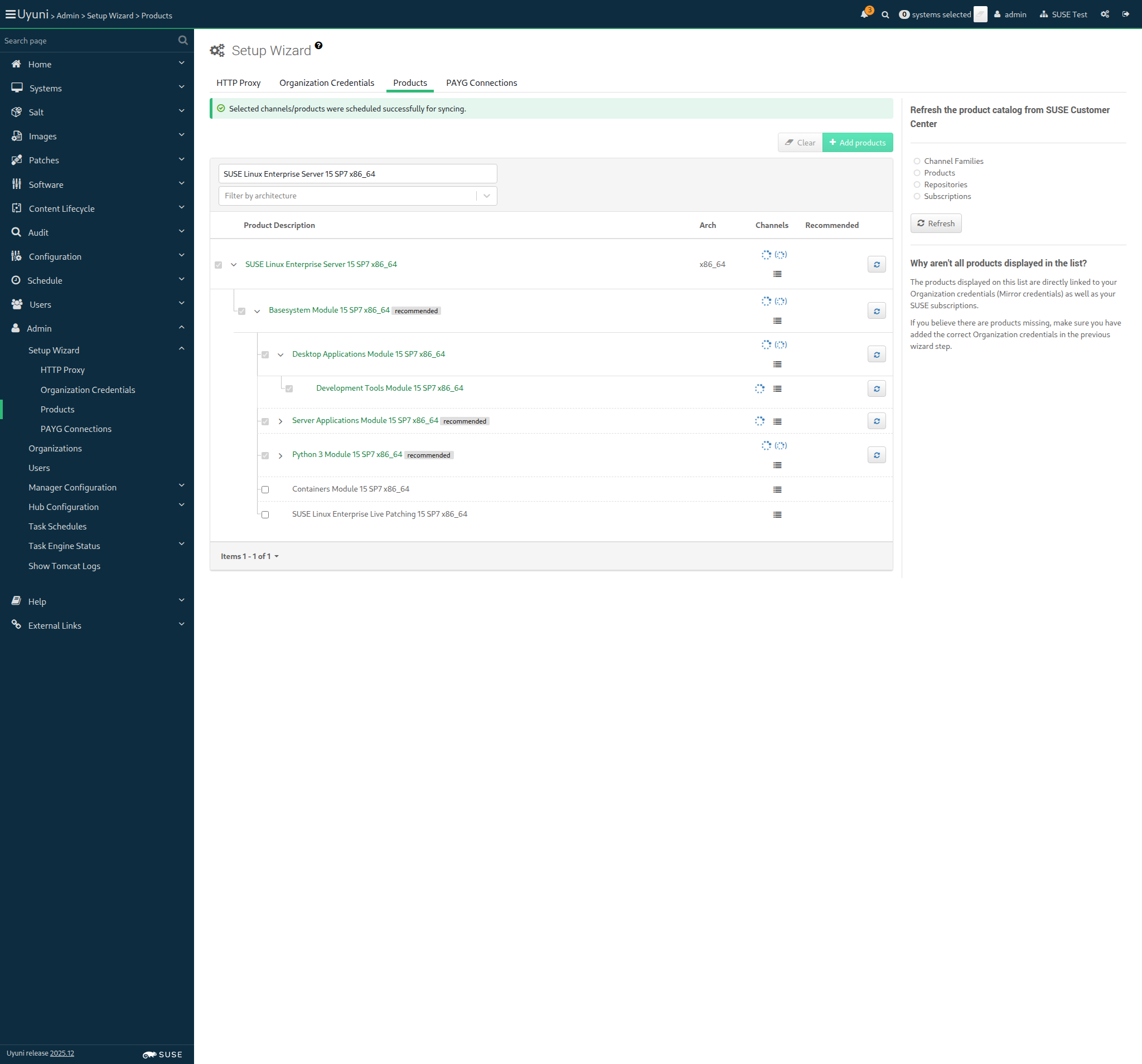
Hit timeout during reposync. These channels did not complete: ["sle-module-desktop-applications15-sp7-pool-x86_64"] (ScriptError) ./features/step_definitions/command_steps.rb:482:in `rescue in block in (top (required))' ./features/step_definitions/command_steps.rb:462:in `/^I wait until all synchronized channels for "([^"]*)" have finished$/' features/reposync/srv_sync_products.feature:113:in `I wait until all synchronized channels for "sles15-sp7" have finished'

15s 518ms Show Info +
09:14:05:000 - 10:05:26:000 | Current URL: https://uyuni-master-server.sumaci.aws/rhn/manager/admin/setup/products
Screenshot +


@proxy @susemanager @transactional_server
Scenario:
Add SL Micro 6.1 as base OS for proxy
< 1ms 13

Given I am authorized for the "Admin" section 0s

When I follow the left menu "Admin > Setup Wizard > Products" 0s

And I wait until I do not see "currently running" text 0s

And I wait until I do not see "Loading" text 0s

And I enter "SUSE Linux Micro 6.1" as the filtered product description 0s

And I select "SUSE Linux Micro 6.1 x86_64" as a product 0s

Then I should see the "SUSE Linux Micro 6.1 x86_64" selected 0s

When I open the sub-list of the product "SUSE Linux Micro 6.1 x86_64" 0s

And I open the sub-list of the product "SUSE Multi-Linux Manager Client Tools for SL Micro 6 x86_64" if present 0s

And I click the Add Product button 0s

And I wait until I see "Selected channels/products were scheduled successfully for syncing." text 0s

And I wait until I see "SUSE Linux Micro 6.1 x86_64" product has been added 0s

And I wait until all synchronized channels for "sl-micro-6.1" have finished 0s

@proxy @susemanager @skip_if_transactional_server
Scenario:
Add SLES 15 SP7 as base OS for proxy
< 1ms 11

Given I am authorized for the "Admin" section 0s

When I follow the left menu "Admin > Setup Wizard > Products" 0s

And I wait until I do not see "currently running" text 0s

And I wait until I do not see "Loading" text 0s

And I enter "SUSE Linux Enterprise Server 15 SP7" as the filtered product description 0s

And I select "SUSE Linux Enterprise Server 15 SP7 (BETA)" as a product 0s

Then I should see the "SUSE Linux Enterprise Server 15 SP7 (BETA)" selected 0s

When I click the Add Product button 0s

And I wait until I see "Selected channels/products were scheduled successfully for syncing." text 0s

And I wait until I see "SUSE Linux Enterprise Server 15 SP7 (BETA)" product has been added 0s

And I wait until all synchronized channels for "sles15-sp7" have finished 0s

Given I am authorized for the "Admin" section 0s

When I follow the left menu "Admin > Setup Wizard > Products" 0s

And I wait until I do not see "currently running" text 0s

And I wait until I do not see "Loading" text 0s

And I enter "SUSE Linux Micro 6.1" as the filtered product description 0s

When I open the sub-list of the product "SUSE Linux Micro 6.1 x86_64" 0s

And I select "SUSE Linux Micro 6.1 x86_64" as a product 0s

And I select "SUSE Multi-Linux Manager Proxy Extension 5.1 x86_64" as a product 0s

Then I should see the "SUSE Multi-Linux Manager Proxy Extension 5.1 x86_64" selected 0s

When I click the Add Product button 0s

And I wait until I see "Selected channels/products were scheduled successfully for syncing." text 0s

And I wait until I see "SUSE Multi-Linux Manager Proxy Extension 5.1 x86_64" product has been added 0s

And I wait until all synchronized channels for "suse-multi-linux-manager-proxy-51" have finished 0s

Given I am authorized for the "Admin" section 0s

When I follow the left menu "Admin > Setup Wizard > Products" 0s

And I wait until I do not see "currently running" text 0s

And I wait until I do not see "Loading" text 0s

And I enter "SUSE Linux Enterprise Server 15 SP7" as the filtered product description 0s

When I open the sub-list of the product "SUSE Linux Enterprise Server 15 SP7 x86_64" 0s

And I select "SUSE Multi-Linux Manager Proxy Extension 5.1 x86_64" as a product 0s

Then I should see the "SUSE Multi-Linux Manager Proxy Extension 5.1 x86_64" selected 0s

When I click the Add Product button 0s

And I wait until I see "Selected channels/products were scheduled successfully for syncing." text 0s

And I wait until I see "SUSE Multi-Linux Manager Proxy Extension 5.1 x86_64" product has been added 0s

And I wait until all synchronized channels for "suse-multi-linux-manager-proxy-51-sp7" have finished 0s

Given I am authorized for the "Admin" section 0s

When I follow the left menu "Admin > Setup Wizard > Products" 0s

And I wait until I do not see "currently running" text 0s

And I wait until I do not see "Loading" text 0s

And I enter "SUSE Linux Micro 6.1" as the filtered product description 0s

When I open the sub-list of the product "SUSE Linux Micro 6.1 x86_64" 0s

And I select "SUSE Linux Micro 6.1 x86_64" as a product 0s

And I select "SUSE Multi-Linux Manager Retail Branch Server Extension 5.1 x86_64" as a product 0s

Then I should see the "SUSE Multi-Linux Manager Retail Branch Server Extension 5.1 x86_64" selected 0s

When I click the Add Product button 0s

And I wait until I see "Selected channels/products were scheduled successfully for syncing." text 0s

And I wait until I see "SUSE Multi-Linux Manager Retail Branch Server Extension 5.1 x86_64" product has been added 0s

And I wait until all synchronized channels for "suse-multi-linux-manager-retail-branch-server-51" have finished 0s

Given I am authorized for the "Admin" section 0s

When I follow the left menu "Admin > Setup Wizard > Products" 0s

And I wait until I do not see "currently running" text 0s

And I wait until I do not see "Loading" text 0s

And I enter "SUSE Linux Enterprise Server 15 SP7" as the filtered product description 0s

When I open the sub-list of the product "SUSE Linux Enterprise Server 15 SP7 x86_64" 0s

And I select "SUSE Multi-Linux Manager Retail Branch Server Extension 5.1 x86_64" as a product 0s

Then I should see the "SUSE Multi-Linux Manager Retail Branch Server Extension 5.1 x86_64" selected 0s

When I click the Add Product button 0s

And I wait until I see "Selected channels/products were scheduled successfully for syncing." text 0s

And I wait until I see "SUSE Multi-Linux Manager Retail Branch Server Extension 5.1 x86_64" product has been added 0s

And I wait until all synchronized channels for "suma-retail-branch-server-extension-51-sp7" have finished 0s

When I execute mgr-sync "list channels" with user "admin" and password "admin" 0s

And I should get " [I] SLE15-SP7-Installer-Updates for x86_64 SUSE Linux Enterprise Server 15 SP7 x86_64 [sle15-sp7-installer-updates-x86_64]" 0s

@scc_credentials @skip_if_github_validation
Scenario:
Detect product loading issues from the UI
29s 794ms 7 1

Given I am authorized for the "Admin" section 501ms

When I follow the left menu "Admin > Setup Wizard > Products" 194ms

And I wait until I see "Setup Wizard" text 65ms

And I wait until I do not see "Loading" text 804ms

Then I should not see a "Operation not successful" text 107ms

And I select "250" from "pageSize" 1s 131ms

And I should only see success signs in the product list 12s 708ms Show Error +
                                            
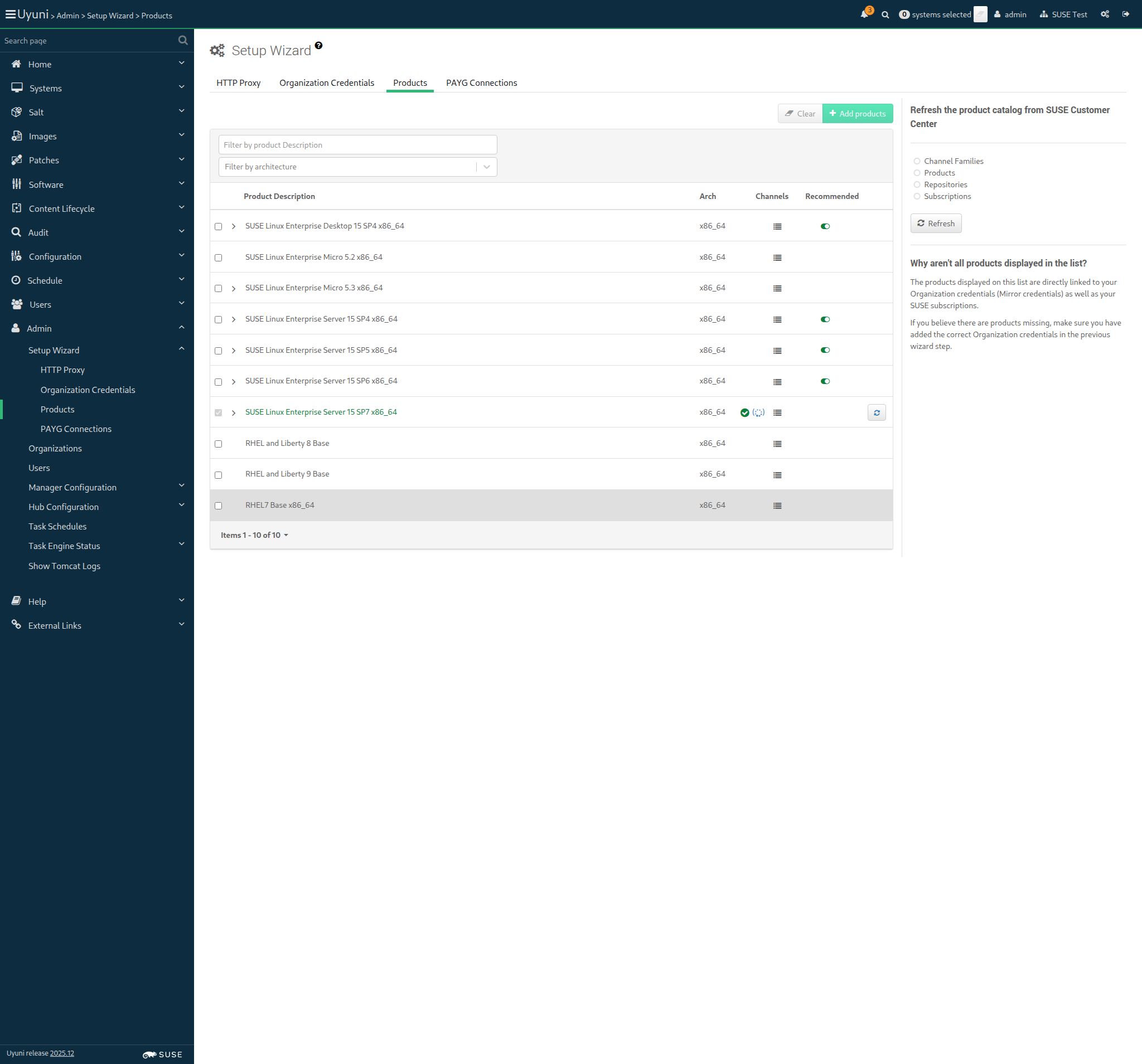
At least one product is not fully synchronized (ScriptError) ./features/step_definitions/navigation_steps.rb:855:in `/^I should only see success signs in the product list$/' features/reposync/srv_sync_products.feature:236:in `I should only see success signs in the product list'

14s 281ms Show Info +
10:05:42:000 - 10:05:58:000 | Current URL: https://uyuni-master-server.sumaci.aws/rhn/manager/admin/setup/products
Screenshot +


When I report the synchronization duration for "sles15-sp7" < 1ms

In Order to distribute software to the clients
As an authorized user
I want to create fake channels for each distribution

Given I am authorized for the "Admin" section 501ms

When I follow the left menu "Software > Manage > Channels" 198ms

And I follow "Create Channel" 288ms

And I enter "Fake-Base-Channel-SUSE-like" as "Channel Name" 90ms

And I enter "fake-base-channel-suse-like" as "Channel Label" 85ms

And I select "None" from "Parent Channel" 58ms

And I select "x86_64" from "Architecture:" 48ms

And I enter "Base channel for testing" as "Channel Summary" 79ms

And I enter "No more description for base channel." as "Channel Description" 86ms

And I click on "Create Channel" 601ms

Then I should see a "Channel Fake-Base-Channel-SUSE-like created." text 65ms

When I follow the left menu "Software > Manage > Channels" 77ms

And I follow "Create Channel" 317ms

And I enter "Fake-Child-Channel-SUSE-like" as "Channel Name" 81ms

And I enter "fake-child-channel-suse-like" as "Channel Label" 77ms

And I select "Fake-Base-Channel-SUSE-like" from "Parent Channel" 69ms

And I select "x86_64" from "Architecture:" 39ms

And I enter "Child channel for testing" as "Channel Summary" 71ms

And I enter "Description for Fake Child Channel SUSE like." as "Channel Description" 88ms

And I click on "Create Channel" 586ms

Then I should see a "Channel Fake-Child-Channel-SUSE-like created." text 66ms

When I follow the left menu "Software > Manage > Channels" 77ms

And I follow "Create Channel" 285ms

And I enter "Fake-RPM-SUSE-Channel" as "Channel Name" 73ms

And I enter "fake-rpm-suse-channel" as "Channel Label" 77ms

And I select the parent channel for the "sle_minion" from "Parent Channel" 50ms

And I select "x86_64" from "Architecture:" 39ms

And I enter "Fake-RPM-SUSE-Channel for testing" as "Channel Summary" 81ms

And I enter "Description for Fake-RPM-SUSE-Channel Child Channel." as "Channel Description" 93ms

And I click on "Create Channel" 541ms

Then I should see a "Channel Fake-RPM-SUSE-Channel created." text 66ms

When I follow the left menu "Software > Manage > Channels" 76ms

And I follow "Create Channel" 364ms

And I enter "Fake-Base-Channel-i586" as "Channel Name" 74ms

And I enter "fake-base-channel-i586" as "Channel Label" 73ms

And I select "None" from "Parent Channel" 45ms

And I select "IA-32" from "Architecture:" 64ms

And I enter "Fake-Base-Channel-i586 channel for testing" as "Channel Summary" 87ms

And I enter "No more description for base channel." as "Channel Description" 78ms

And I click on "Create Channel" 69ms

Then I should see a "Channel Fake-Base-Channel-i586 created." text 67ms

When I follow the left menu "Software > Manage > Channels" 78ms

And I follow "Create Channel" 297ms

And I enter "Fake-Child-Channel-i586" as "Channel Name" 74ms

And I enter "fake-child-channel-i586" as "Channel Label" 71ms

And I select "Fake-Base-Channel-i586" from "Parent Channel" 64ms

And I select "IA-32" from "Architecture:" 36ms

And I enter "Fake Child Channel i586 for testing" as "Channel Summary" 81ms

And I enter "Description for Fake Child Channel i586." as "Channel Description" 85ms

And I click on "Create Channel" 517ms

Then I should see a "Channel Fake-Child-Channel-i586 created." text 65ms

When I follow the left menu "Software > Manage > Channels" 74ms

And I follow "Create Channel" 265ms

And I enter "Test-Base-Channel-x86_64" as "Channel Name" 76ms

And I enter "test-base-channel-x86_64" as "Channel Label" 73ms

And I select "None" from "Parent Channel" 46ms

And I select "x86_64" from "Architecture:" 37ms

And I enter "Test-Base-Channel-x86_64 channel for testing" as "Channel Summary" 91ms

And I enter "No more description for base channel." as "Channel Description" 82ms

And I click on "Create Channel" 522ms

Then I should see a "Channel Test-Base-Channel-x86_64 created." text 66ms

When I follow the left menu "Software > Manage > Channels" 78ms

And I follow "Create Channel" 323ms

And I enter "Test-Child-Channel-x86_64" as "Channel Name" 77ms

And I enter "test-child-channel-x86_64" as "Channel Label" 74ms

And I select "Test-Base-Channel-x86_64" from "Parent Channel" 63ms

And I select "x86_64" from "Architecture:" 36ms

And I enter "Test-Child-Channel-x86_64 channel for testing" as "Channel Summary" 89ms

And I enter "Description for Test-Child-Channel-x86_64 Channel." as "Channel Description" 90ms

And I click on "Create Channel" 60ms

Then I should see a "Channel Test-Child-Channel-x86_64 created." text 70ms

When I follow the left menu "Software > Manage > Channels" 0s

And I follow "Create Channel" 0s

And I enter "Fake-RPM-Terminal-Channel" as "Channel Name" 0s

And I enter "fake-rpm-terminal-channel" as "Channel Label" 0s

And I select the parent channel for the "pxeboot_minion" from "Parent Channel" 0s

And I select "x86_64" from "Architecture:" 0s

And I enter "Fake-RPM-Terminal-Channel for testing" as "Channel Summary" 0s

And I enter "Description for Fake-RPM-Terminal-Channel Child Channel." as "Channel Description" 0s

And I click on "Create Channel" 0s

Then I should see a "Channel Fake-RPM-Terminal-Channel created." text 0s

When I follow the left menu "Software > Manage > Channels" 76ms

And I follow "Create Channel" 314ms

And I enter "Fake-Base-Channel-Debian-like" as "Channel Name" 79ms

And I enter "fake-base-channel-debian-like" as "Channel Label" 76ms

And I select "None" from "Parent Channel" 44ms

And I select "AMD64 Debian" from "Architecture:" 59ms

And I enter "Fake-Base-Channel-Debian-like for testing" as "Channel Summary" 86ms

And I enter "No more description for base channel." as "Channel Description" 81ms

And I uncheck "gpg_check" 10s 93ms

And I click on "Create Channel" 853ms

Then I should see a "Channel Fake-Base-Channel-Debian-like created." text 71ms

When I follow the left menu "Software > Manage > Channels" 73ms

And I follow "Create Channel" 616ms

And I enter "Fake-Base-Channel-RH-like" as "Channel Name" 75ms

And I enter "fake-base-channel-rh-like" as "Channel Label" 73ms

And I select "None" from "Parent Channel" 42ms

And I select "x86_64" from "Architecture:" 35ms

And I enter "Fake-Base-Channel-RH-like for testing" as "Channel Summary" 87ms

And I enter "No more description for base channel." as "Channel Description" 79ms

And I click on "Create Channel" 910ms

Then I should see a "Channel Fake-Base-Channel-RH-like created." text 67ms

When I follow the left menu "Software > Manage > Channels" 75ms

And I follow "Create Channel" 656ms

And I enter "Fake-Base-Channel-AppStream" as "Channel Name" 77ms

And I enter "fake-base-channel-appstream" as "Channel Label" 74ms

And I select "None" from "Parent Channel" 42ms

And I select "x86_64" from "Architecture:" 37ms

And I enter "Fake-Base-Channel-AppStream for testing" as "Channel Summary" 89ms

And I enter "Description for Fake-Base-Channel-AppStream." as "Channel Description" 90ms

And I click on "Create Channel" 978ms

Then I should see a "Channel Fake-Base-Channel-AppStream created." text 66ms

In order to distribute software to the clients
As an authorized user
I want to create a fake repository per fake child channel

Given I am authorized for the "Admin" section 1s 327ms

When I follow the left menu "Software > Manage > Repositories" 185ms

And I follow "Create Repository" 895ms

And I enter "fake-rpm-repo" as "label" 61ms

And I enter "http://localhost/pub/TestRepoRpmUpdates/" as "url" 84ms

And I click on "Create Repository" 887ms

Then I should see a "Repository created successfully" text 56ms

And I should see "metadataSigned" as checked 26ms

When I follow the left menu "Software > Manage > Repositories" 76ms

And I follow "fake-rpm-repo" 500ms

And I uncheck "metadataSigned" 10s 84ms

And I click on "Update Repository" 1s 4ms

Then I should see a "Repository updated successfully" text 58ms

And I should see "metadataSigned" as unchecked 16ms

When I follow the left menu "Software > Manage > Repositories" 84ms

And I follow "Create Repository" 552ms

And I enter "fake-appstream-repo" as "label" 63ms

And I enter "http://localhost/pub/TestRepoAppStream/" as "url" 83ms

And I click on "Create Repository" 968ms

Then I should see a "Repository created successfully" text 57ms

And I should see "metadataSigned" as checked 17ms

When I follow the left menu "Software > Manage > Repositories" 71ms

And I follow "fake-appstream-repo" 502ms

And I uncheck "metadataSigned" 10s 65ms

And I click on "Update Repository" 931ms

Then I should see a "Repository updated successfully" text 61ms

And I should see "metadataSigned" as unchecked 17ms

When I follow the left menu "Software > Manage > Channels" 96ms

And I follow "Fake-RPM-SUSE-Channel" 1s 710ms

And I enter "file:///etc/pki/rpm-gpg/uyuni-tools-gpg-pubkey-0d20833e.key" as "GPG key URL" 122ms

And I click on "Update Channel" 67ms

Then I should see a "Channel Fake-RPM-SUSE-Channel updated" text 68ms

When I follow "Repositories" in the content area 75ms

And I select the "fake-rpm-repo" repo 63ms

And I click on "Save Repositories" 1s 442ms

Then I should see a "Fake-RPM-SUSE-Channel repository information was successfully updated" text 65ms

When I follow the left menu "Software > Manage > Channels" 73ms

And I follow "Test-Child-Channel-x86_64" 1s 32ms

And I enter "file:///etc/pki/rpm-gpg/uyuni-tools-gpg-pubkey-0d20833e.key" as "GPG key URL" 102ms

And I click on "Update Channel" 56ms

Then I should see a "Channel Test-Child-Channel-x86_64 updated" text 72ms

When I follow "Repositories" in the content area 65ms

And I select the "fake-rpm-repo" repo 54ms

And I click on "Save Repositories" 1s 654ms

Then I should see a "Test-Child-Channel-x86_64 repository information was successfully updated" text 63ms

When I follow the left menu "Software > Manage > Channels" 73ms

And I follow "Fake-Base-Channel-RH-like" 890ms

And I enter "file:///etc/pki/rpm-gpg/uyuni-tools-gpg-pubkey-0d20833e.key" as "GPG key URL" 106ms

And I click on "Update Channel" 1s 508ms

Then I should see a "Channel Fake-Base-Channel-RH-like updated" text 65ms

When I follow "Repositories" in the content area 62ms

And I select the "fake-rpm-repo" repo 52ms

And I click on "Save Repositories" 1s 28ms

Then I should see a "Fake-Base-Channel-RH-like repository information was successfully updated" text 63ms

When I follow the left menu "Software > Manage > Channels" 71ms

And I follow "Fake-Base-Channel-AppStream" 972ms

And I enter "file:///etc/pki/rpm-gpg/uyuni-tools-gpg-pubkey-0d20833e.key" as "GPG key URL" 101ms

And I click on "Update Channel" 57ms

Then I should see a "Channel Fake-Base-Channel-AppStream updated" text 76ms

When I follow "Repositories" in the content area 62ms

And I select the "fake-appstream-repo" repo 57ms

And I click on "Save Repositories" 1s 303ms

Then I should see a "Fake-Base-Channel-AppStream repository information was successfully updated" text 68ms

When I follow the left menu "Software > Manage > Repositories" 78ms

And I follow "Create Repository" 555ms

And I enter "fake-i586-repo" as "label" 60ms

And I enter "file:///srv/www/htdocs/pub/TestRepoRpmUpdates/" as "url" 88ms

And I uncheck "metadataSigned" 10s 72ms

And I click on "Create Repository" 1s 118ms

Then I should see a "Repository created successfully" text 57ms

When I follow the left menu "Software > Manage > Channels" 81ms

And I follow "Fake-Child-Channel-i586" 816ms

And I enter "file:///etc/pki/rpm-gpg/uyuni-tools-gpg-pubkey-0d20833e.key" as "GPG key URL" 107ms

And I click on "Update Channel" 1s 38ms

Then I should see a "Channel Fake-Child-Channel-i586 updated" text 69ms

When I follow "Repositories" in the content area 75ms

And I select the "fake-i586-repo" repo 59ms

And I click on "Save Repositories" 1s 49ms

Then I should see a "Fake-Child-Channel-i586 repository information was successfully updated" text 69ms

When I follow the left menu "Software > Manage > Channels" 73ms

And I follow "Fake-Child-Channel-SUSE-like" 666ms

And I follow "Repositories" in the content area 61ms

And I select the "fake-rpm-repo" repo 57ms

And I click on "Save Repositories" 1s 922ms

Then I should see a "Fake-Child-Channel-SUSE-like repository information was successfully updated" text 64ms

When I follow the left menu "Software > Manage > Repositories" 75ms

And I follow "Create Repository" 428ms

And I enter "fake-debian-repo" as "label" 63ms

And I select "deb" from "contenttype" 67ms

And I enter "http://localhost/pub/TestRepoDebUpdates/" as "url" 115ms

And I click on "Create Repository" 57ms

Then I should see a "Repository created successfully" text 57ms

When I follow the left menu "Software > Manage > Channels" 75ms

And I follow "Fake-Base-Channel-Debian-like" 744ms

And I follow "Repositories" in the content area 60ms

And I select the "fake-debian-repo" repo 58ms

And I click on "Save Repositories" 1s 146ms

Then I should see a "Fake-Base-Channel-Debian-like repository information was successfully updated" text 65ms

When I follow the left menu "Software > Manage > Channels" 0s

And I follow "Fake-RPM-Terminal-Channel" 0s

And I enter "file:///etc/pki/rpm-gpg/uyuni-tools-gpg-pubkey-0d20833e.key" as "GPG key URL" 0s

And I click on "Update Channel" 0s

Then I should see a "Channel Fake-RPM-Terminal-Channel updated" text 0s

When I follow "Repositories" in the content area 0s

And I select the "fake-rpm-repo" repo 0s

And I click on "Save Repositories" 0s

Then I should see a "Fake-RPM-Terminal-Channel repository information was successfully updated" text 0s

In Order to use product packages in development to the clients
As an authorized user
I want to create custom channels for each distribution

Given I am authorized for the "Admin" section 1s 339ms

When I follow the left menu "Software > Manage > Channels" 180ms

And I follow "Create Channel" 587ms

And I enter "Devel-SUSE-Channel" as "Channel Name" 76ms

And I enter "devel-suse-channel" as "Channel Label" 77ms

And I select the parent channel for the "sle_minion" from "Parent Channel" 59ms

And I select "x86_64" from "Architecture:" 48ms

And I enter "Devel-SUSE-Channel for development repositories" as "Channel Summary" 99ms

And I enter "Channel containing development repositories" as "Channel Description" 92ms

And I click on "Create Channel" 819ms

Then I should see a "Channel Devel-SUSE-Channel created." text 65ms

When I prepare the development repositories of "sle_minion" as part of "devel-suse-channel" channel 9s 70ms

When I follow the left menu "Software > Manage > Channels" 72ms

And I follow "Create Channel" 757ms

And I enter "Devel-Build-Host-Channel" as "Channel Name" 75ms

And I enter "devel-build-host-channel" as "Channel Label" 74ms

And I select the parent channel for the "build_host" from "Parent Channel" 50ms

And I select "x86_64" from "Architecture:" 40ms

And I enter "Devel-Build-Host-Channel for development repositories" as "Channel Summary" 99ms

And I enter "Channel containing development repositories" as "Channel Description" 83ms

And I click on "Create Channel" 1s 410ms

Then I should see a "Channel Devel-Build-Host-Channel created." text 69ms

When I prepare the development repositories of "build_host" as part of "devel-build-host-channel" channel 5s 906ms

When I follow the left menu "Software > Manage > Channels" 75ms

And I follow "Create Channel" 746ms

And I enter "Devel-Debian-like-Channel" as "Channel Name" 74ms

And I enter "devel-debian-like-channel" as "Channel Label" 75ms

And I select "Fake-Base-Channel-Debian-like" from "Parent Channel" 63ms

And I select "AMD64 Debian" from "Architecture:" 44ms

And I enter "Devel-Debian-like-Channel for development repositories" as "Channel Summary" 93ms

And I enter "Channel containing development repositories" as "Channel Description" 86ms

And I click on "Create Channel" 57ms

Then I should see a "Channel Devel-Debian-like-Channel created." text 72ms

When I prepare the development repositories of "deblike_minion" as part of "devel-debian-like-channel" channel 9s 753ms

When I follow the left menu "Software > Manage > Channels" 76ms

And I follow "Create Channel" 687ms

And I enter "Devel-RH-like-Channel" as "Channel Name" 71ms

And I enter "devel-rh-like-channel" as "Channel Label" 68ms

And I select "Fake-Base-Channel-RH-like" from "Parent Channel" 62ms

And I select "x86_64" from "Architecture:" 44ms

And I enter "Devel-RH-like-Channel for development repositories" as "Channel Summary" 93ms

And I enter "Channel containing development repositories" as "Channel Description" 94ms

And I click on "Create Channel" 1s 351ms

Then I should see a "Channel Devel-RH-like-Channel created." text 69ms

When I prepare the development repositories of "rhlike_minion" as part of "devel-rh-like-channel" channel 9s 292ms

In order to use the content provided inside the repositories of the fake channels
As admin
I want to synchronize the fake channels

Given I am authorized for the "Admin" section 890ms

And I enable source package syncing 1s 801ms

Given I am authorized for the "Admin" section 1s 49ms

When I follow the left menu "Software > Manage > Channels" 176ms

And I follow "Fake-RPM-SUSE-Channel" 612ms

And I follow "Repositories" in the content area 74ms

And I follow "Sync" 873ms

And I wait at most 60 seconds until I do not see "Repository sync is running." text, refreshing the page 58ms

And I click on "Sync Now" 2s 843ms

Then I should see a "Repository sync scheduled for Fake-RPM-SUSE-Channel." text 60ms

And I wait until the channel "fake-rpm-suse-channel" has been synced 958ms

Then "orion-dummy-1.1-1.1.x86_64.rpm" package should have been stored 6s 895ms

And solver file for "fake-rpm-suse-channel" should reference "orion-dummy-1.1-1.1.x86_64.rpm" 3m 48s 907ms

Given I am authorized for the "Admin" section 921ms

When I follow the left menu "Software > Manage > Channels" 163ms

And I follow "Fake-Child-Channel-i586" 438ms

And I follow "Repositories" in the content area 59ms

And I follow "Sync" 324ms

And I wait at most 60 seconds until I do not see "Repository sync is running." text, refreshing the page 58ms

And I click on "Sync Now" 1s 791ms

Then I should see a "Repository sync scheduled for Fake-Child-Channel-i586." text 61ms

And I wait until the channel "fake-child-channel-i586" has been synced 389ms

Given I am authorized for the "Admin" section 482ms

When I follow the left menu "Software > Manage > Channels" 162ms

And I follow "Test-Child-Channel-x86_64" 432ms

And I follow "Repositories" in the content area 63ms

And I follow "Sync" 710ms

And I wait at most 60 seconds until I do not see "Repository sync is running." text, refreshing the page 60ms

And I click on "Sync Now" 1s 781ms

Then I should see a "Repository sync scheduled for Test-Child-Channel-x86_64." text 60ms

And I wait until the channel "test-child-channel-x86_64" has been synced 392ms

Given I am authorized for the "Admin" section 452ms

When I follow the left menu "Software > Manage > Channels" 161ms

And I follow "Fake-Child-Channel-SUSE-like" 348ms

And I follow "Repositories" in the content area 65ms

And I follow "Sync" 861ms

And I wait at most 60 seconds until I do not see "Repository sync is running." text, refreshing the page 64ms

And I click on "Sync Now" 1s 845ms

Then I should see a "Repository sync scheduled for Fake-Child-Channel-SUSE-like." text 60ms

And I wait until the channel "fake-child-channel-suse-like" has been synced 351ms

Given I am authorized for the "Admin" section 447ms

When I follow the left menu "Software > Manage > Channels" 161ms

And I follow "Fake-Base-Channel-Debian-like" 346ms

And I follow "Repositories" in the content area 59ms

And I follow "Sync" 866ms

And I wait at most 60 seconds until I do not see "Repository sync is running." text, refreshing the page 59ms

And I click on "Sync Now" 1s 792ms

Then I should see a "Repository sync scheduled for Fake-Base-Channel-Debian-like." text 58ms

And I wait until the channel "fake-base-channel-debian-like" has been synced 376ms

Given I am authorized for the "Admin" section 450ms

When I follow the left menu "Software > Manage > Channels" 165ms

And I follow "Fake-Base-Channel-RH-like" 353ms

And I follow "Repositories" in the content area 59ms

And I follow "Sync" 932ms

And I wait at most 60 seconds until I do not see "Repository sync is running." text, refreshing the page 58ms

And I click on "Sync Now" 1s 842ms

Then I should see a "Repository sync scheduled for Fake-Base-Channel-RH-like." text 57ms

And I wait until the channel "fake-base-channel-rh-like" has been synced 390ms

Given I am authorized for the "Admin" section 443ms

When I follow the left menu "Software > Manage > Channels" 158ms

And I follow "Fake-Base-Channel-AppStream" 353ms

And I follow "Repositories" in the content area 57ms

And I follow "Sync" 802ms

And I wait at most 60 seconds until I do not see "Repository sync is running." text, refreshing the page 59ms

And I click on "Sync Now" 1s 851ms

Then I should see a "Repository sync scheduled for Fake-Base-Channel-AppStream." text 63ms

And I wait until the channel "fake-base-channel-appstream" has been synced 360ms

Given I am authorized for the "Admin" section 0s

And I follow the left menu "Software > Manage > Channels" 0s

And I follow "Fake-RPM-Terminal-Channel" 0s

And I follow "Repositories" in the content area 0s

And I follow "Sync" 0s

And I wait at most 60 seconds until I do not see "Repository sync is running." text, refreshing the page 0s

And I click on "Sync Now" 0s

Then I should see a "Repository sync scheduled for Fake-RPM-Terminal-Channel." text 0s

And I wait until the channel "fake-rpm-terminal-channel" has been synced 0s

Then "orion-dummy-1.1-1.1.x86_64.rpm" package should have been stored 0s

And solver file for "fake-rpm-terminal-channel" should reference "orion-dummy-1.1-1.1.x86_64.rpm" 0s

When I follow the left menu "Admin > Task Schedules" 115ms

And I follow "errata-cache-default" 1s 281ms

And I follow "errata-cache-bunch" 1s 398ms

And I click on "Single Run Schedule" 1s 324ms

Then I should see a "bunch was scheduled" text 229ms

And I wait until the table contains "FINISHED" or "SKIPPED" followed by "FINISHED" in its first rows 2s 237ms

When I follow the left menu "Admin > Task Schedules" 71ms

And I follow "channel-repodata-default" 1s 182ms

And I follow "channel-repodata-bunch" 1s 285ms

And I click on "Single Run Schedule" 342ms

Then I should see a "bunch was scheduled" text 198ms

And I wait until the table contains "FINISHED" or "SKIPPED" followed by "FINISHED" in its first rows 2s 35ms

Then I disable source package syncing 1s 16ms

In order to use the content provided inside the repositories of the dev channels
As admin
I want to synchronize the dev channels

Given I am authorized for the "Admin" section 460ms

When I follow the left menu "Software > Manage > Channels" 191ms

And I follow "Devel-SUSE-Channel" 451ms

And I follow "Repositories" in the content area 84ms

And I follow "Sync" 330ms

And I wait at most 60 seconds until I do not see "Repository sync is running." text, refreshing the page 60ms

And I click on "Sync Now" 1s 814ms

Then I should see a "Repository sync scheduled for Devel-SUSE-Channel." text 59ms

And I wait until the channel "devel-suse-channel" has been synced 428ms

Given I am authorized for the "Admin" section 463ms

When I follow the left menu "Software > Manage > Channels" 161ms

And I follow "Devel-Debian-like-Channel" 354ms

And I follow "Repositories" in the content area 60ms

And I follow "Sync" 852ms

And I wait at most 60 seconds until I do not see "Repository sync is running." text, refreshing the page 62ms

And I click on "Sync Now" 1s 800ms

Then I should see a "Repository sync scheduled for Devel-Debian-like-Channel." text 59ms

And I wait until the channel "devel-debian-like-channel" has been synced 341ms

Given I am authorized for the "Admin" section 491ms

When I follow the left menu "Software > Manage > Channels" 154ms

And I follow "Devel-RH-like-Channel" 355ms

And I follow "Repositories" in the content area 59ms

And I follow "Sync" 849ms

And I wait at most 60 seconds until I do not see "Repository sync is running." text, refreshing the page 58ms

And I click on "Sync Now" 1s 783ms

Then I should see a "Repository sync scheduled for Devel-RH-like-Channel." text 59ms

And I wait until the channel "devel-rh-like-channel" has been synced 385ms

Given I am authorized for the "Admin" section 517ms

When I follow the left menu "Software > Manage > Channels" 154ms

And I follow "Devel-Build-Host-Channel" 365ms

And I follow "Repositories" in the content area 59ms

And I follow "Sync" 859ms

And I wait at most 60 seconds until I do not see "Repository sync is running." text, refreshing the page 58ms

And I click on "Sync Now" 1s 837ms

Then I should see a "Repository sync scheduled for Devel-Build-Host-Channel." text 58ms

And I wait until the channel "devel-build-host-channel" has been synced 334ms

In order to register systems to the server
As the testing user
I want to use activation keys

Given I am authorized for the "Admin" section 535ms

When I create an activation key with id "SUSE-KEY-x86_64", description "SUSE Test Key x86_64", limit of 20 and contact method "default" 2s 57ms

Then I should get the new activation key "1-SUSE-KEY-x86_64" 529ms

When I create an activation key with id "RH-LIKE-KEY", description "RedHat like Test Key", base channel "fake-base-channel-rh-like", limit of 20 and contact method "default" 1s 670ms

Then I should get the new activation key "1-RH-LIKE-KEY" 914ms

When I create an activation key with id "DEBLIKE-KEY", description "Debian-like Test Key", base channel "fake-base-channel-debian-like", limit of 20 and contact method "default" 1s 269ms

Then I should get the new activation key "1-DEBLIKE-KEY" 860ms

When I create an activation key with id "SUSE-SSH-KEY-x86_64", description "SUSE SSH Test Key x86_64", limit of 20 and contact method "ssh-push" 916ms

Then I should get the new activation key "1-SUSE-SSH-KEY-x86_64" 1s 52ms

When I create an activation key with id "SUSE-SSH-TUNNEL-KEY-x86_64", description "SUSE SSH Tunnel Test Key x86_64", limit of 20 and contact method "ssh-push-tunnel" 872ms

Then I should get the new activation key "1-SUSE-SSH-TUNNEL-KEY-x86_64" 1s 142ms

When I create an activation key with id "PROXY-KEY-x86_64", description "Proxy Key x86_64", limit of 1 903ms

Then I should get the new activation key "1-PROXY-KEY-x86_64" 1s 323ms

When I create an activation key with id "BUILD-HOST-KEY-x86_64", description "Build host Key x86_64" 882ms

And I set the entitlements of the activation key "1-BUILD-HOST-KEY-x86_64" to "container_build_host, osimage_build_host" 458ms

Then I should get the new activation key "1-BUILD-HOST-KEY-x86_64" 1s 289ms

When I create an activation key with id "TERMINAL-KEY-x86_64", description "Terminal Key x86_64" 771ms

Then I should get the new activation key "1-TERMINAL-KEY-x86_64" 1s 417ms

In order to register systems to the spacewalk server
As admin
I want to update activation keys to use synchronized base products

Given I am authorized for the "Admin" section 471ms

When I follow the left menu "Systems > Activation Keys" 0s

And I follow "SUSE Test Key x86_64" in the content area 0s

And I wait for child channels to appear 0s

And I select the parent channel for the "sle_minion" from "selectedBaseChannel" 0s

And I wait for child channels to appear 0s

And I include the recommended child channels 0s

And I wait until "SLE-Module-Basesystem15-SP7-Pool for x86_64" has been checked 0s

And I wait until "SLE-Module-Basesystem15-SP7-Updates for x86_64" has been checked 0s

And I wait until "SLE-Module-Server-Applications15-SP7-Pool for x86_64" has been checked 0s

And I wait until "SLE-Module-Server-Applications15-SP7-Updates for x86_64" has been checked 0s

And I check "SLE-Module-DevTools15-SP7-Pool for x86_64" 0s

And I wait until "SLE-Module-DevTools15-SP7-Updates for x86_64" has been checked 0s

And I wait until "SLE-Module-Desktop-Applications15-SP7-Pool for x86_64" has been checked 0s

And I wait until "SLE-Module-Desktop-Applications15-SP7-Updates for x86_64" has been checked 0s

And I check "SLE-Module-Containers15-SP7-Pool for x86_64" 0s

And I wait until "SLE-Module-Containers15-SP7-Updates for x86_64" has been checked 0s

And I check "Fake-RPM-SUSE-Channel" 0s

And I wait until "Fake-RPM-SUSE-Channel" has been checked 0s

And I click on "Update Activation Key" 0s

Then I should see a "Activation key SUSE Test Key x86_64 has been modified" text 0s

When I follow the left menu "Systems > Activation Keys" 124ms

And I follow "SUSE Test Key x86_64" in the content area 69ms

And I wait until I do not see "Loading..." text 579ms

And I select the parent channel for the "sle_minion" from "selectedBaseChannel" 59ms

And I wait until I do not see "Loading..." text 73ms

And I check "Uyuni Client Tools for openSUSE Tumbleweed (x86_64) (Development)" 641ms

And I check "Fake-RPM-SUSE-Channel" 85ms

And I wait until "Fake-RPM-SUSE-Channel" has been checked 18ms

And I click on "Update Activation Key" 697ms

Then I should see a "Activation key SUSE Test Key x86_64 has been modified" text 66ms

When I follow the left menu "Systems > Activation Keys" 0s

And I follow "SUSE SSH Test Key x86_64" in the content area 0s

And I wait for child channels to appear 0s

And I select the parent channel for the "sle_minion" from "selectedBaseChannel" 0s

And I wait for child channels to appear 0s

And I include the recommended child channels 0s

And I check "SLE-Module-DevTools15-SP7-Pool for x86_64" 0s

And I wait until "SLE-Module-DevTools15-SP7-Updates for x86_64" has been checked 0s

And I wait until "SLE-Module-Desktop-Applications15-SP7-Pool for x86_64" has been checked 0s

And I wait until "SLE-Module-Desktop-Applications15-SP7-Updates for x86_64" has been checked 0s

And I check "Fake-RPM-SUSE-Channel" 0s

And I wait until "Fake-RPM-SUSE-Channel" has been checked 0s

And I click on "Update Activation Key" 0s

Then I should see a "Activation key SUSE SSH Test Key x86_64 has been modified" text 0s

When I follow the left menu "Systems > Activation Keys" 67ms

And I follow "SUSE SSH Test Key x86_64" in the content area 70ms

And I wait until I do not see "Loading..." text 727ms

And I select the parent channel for the "sle_minion" from "selectedBaseChannel" 39ms

And I wait until I do not see "Loading..." text 66ms

And I check "Uyuni Client Tools for openSUSE Tumbleweed (x86_64) (Development)" 565ms

And I check "Fake-RPM-SUSE-Channel" 90ms

And I wait until "Fake-RPM-SUSE-Channel" has been checked 17ms

And I click on "Update Activation Key" 613ms

Then I should see a "Activation key SUSE SSH Test Key x86_64 has been modified" text 63ms

When I follow the left menu "Systems > Activation Keys" 0s

And I follow "SUSE SSH Tunnel Test Key x86_64" in the content area 0s

And I wait for child channels to appear 0s

And I select the parent channel for the "sle_minion" from "selectedBaseChannel" 0s

And I wait for child channels to appear 0s

And I include the recommended child channels 0s

And I check "SLE-Module-DevTools15-SP7-Pool for x86_64" 0s

And I wait until "SLE-Module-DevTools15-SP7-Updates for x86_64" has been checked 0s

And I wait until "SLE-Module-Desktop-Applications15-SP7-Pool for x86_64" has been checked 0s

And I wait until "SLE-Module-Desktop-Applications15-SP7-Updates for x86_64" has been checked 0s

And I check "Fake-RPM-SUSE-Channel" 0s

And I wait until "Fake-RPM-SUSE-Channel" has been checked 0s

And I click on "Update Activation Key" 0s

Then I should see a "Activation key SUSE SSH Tunnel Test Key x86_64 has been modified" text 0s

When I follow the left menu "Systems > Activation Keys" 66ms

And I follow "SUSE SSH Tunnel Test Key x86_64" in the content area 70ms

And I wait until I do not see "Loading..." text 594ms

And I select the parent channel for the "sle_minion" from "selectedBaseChannel" 43ms

And I wait until I do not see "Loading..." text 63ms

And I check "Uyuni Client Tools for openSUSE Tumbleweed (x86_64) (Development)" 525ms

And I check "Fake-RPM-SUSE-Channel" 76ms

And I wait until "Fake-RPM-SUSE-Channel" has been checked 16ms

And I click on "Update Activation Key" 654ms

Then I should see a "Activation key SUSE SSH Tunnel Test Key x86_64 has been modified" text 63ms

@scc_credentials @susemanager @proxy @containerized_server @transactional_server
Scenario:
Update the SLE Micro proxy key with synced base product
< 1ms 11

When I follow the left menu "Systems > Activation Keys" 0s

And I follow "Proxy Key x86_64" in the content area 0s

And I wait for child channels to appear 0s

And I select the parent channel for the "proxy_container" from "selectedBaseChannel" 0s

And I wait for child channels to appear 0s

And I include the recommended child channels 0s

And I wait until "ManagerTools-SL-Micro-6.1 for x86_64" has been checked 0s

And I check "SUSE-Multi-Linux-Manager-Proxy-5.1 for x86_64" 0s

And I check "SUSE-Multi-Linux-Manager-Retail-Branch-Server-5.1 for x86_64" 0s

And I click on "Update Activation Key" 0s

Then I should see a "Activation key Proxy Key x86_64 has been modified" text 0s

@scc_credentials @susemanager @proxy @containerized_server @skip_if_transactional_server
Scenario:
Update the SLES proxy key with synced base product
< 1ms 11

When I follow the left menu "Systems > Activation Keys" 0s

And I follow "Proxy Key x86_64" in the content area 0s

And I wait for child channels to appear 0s

And I select the parent channel for the "proxy_nontransactional" from "selectedBaseChannel" 0s

And I wait for child channels to appear 0s

And I include the recommended child channels 0s

And I wait until "ManagerTools-SLE15-Pool for x86_64 SP7" has been checked 0s

And I check "SUSE-Manager-Proxy-5.1-Pool for x86_64" 0s

And I check "SUSE-Manager-Proxy-5.1-Updates for x86_64" 0s

And I click on "Update Activation Key" 0s

Then I should see a "Activation key Proxy Key x86_64 has been modified" text 0s

When I follow the left menu "Systems > Activation Keys" 0s

And I follow "Proxy Key x86_64" in the content area 0s

And I wait for child channels to appear 0s

And I select the parent channel for the "proxy_container" from "selectedBaseChannel" 0s

And I wait for child channels to appear 0s

And I check "Uyuni Client Tools for openSUSE Tumbleweed (x86_64) (Development)" 0s

And I click on "Update Activation Key" 0s

Then I should see a "Activation key Proxy Key x86_64 has been modified" text 0s

When I follow the left menu "Systems > Activation Keys" 63ms

And I follow "Build host Key x86_64" in the content area 69ms

And I wait for child channels to appear 1s 398ms

And I select the parent channel for the "build_host" from "selectedBaseChannel" 49ms

And I wait for child channels to appear 455ms

And I include the recommended child channels 161ms

And I wait until "SLE-Module-Basesystem15-SP7-Pool for x86_64" has been checked 20ms

And I wait until "SLE-Module-Basesystem15-SP7-Updates for x86_64" has been checked 19ms

And I wait until "SLE-Module-Server-Applications15-SP7-Pool for x86_64" has been checked 19ms

And I wait until "SLE-Module-Server-Applications15-SP7-Updates for x86_64" has been checked 20ms

And I check "SLE-Module-DevTools15-SP7-Pool for x86_64" 82ms

And I wait until "SLE-Module-DevTools15-SP7-Updates for x86_64" has been checked 20ms

And I wait until "SLE-Module-Desktop-Applications15-SP7-Pool for x86_64" has been checked 19ms

And I wait until "SLE-Module-Desktop-Applications15-SP7-Updates for x86_64" has been checked 18ms

And I wait until "SLE-Module-Systems-Management-15-SP7-Pool for x86_64" has been checked 19ms

And I wait until "SLE-Module-Systems-Management-15-SP7-Updates for x86_64" has been checked 19ms

And I wait until "SLE-Module-Python3-15-SP7-Pool for x86_64" has been checked 20ms

And I wait until "SLE-Module-Python3-15-SP7-Updates for x86_64" has been checked 20ms

And I click on "Update Activation Key" 637ms

Then I should see a "Activation key Build host Key x86_64 has been modified" text 66ms

When I follow the left menu "Systems > Activation Keys" 65ms

And I follow "Build host Key x86_64" in the content area 63ms

And I wait for child channels to appear 975ms

And I select the parent channel for the "build_host" from "selectedBaseChannel" 24ms

And I wait for child channels to appear 266ms

And I check "Uyuni Client Tools for SLES15 SP7 x86_64 (Development)" 86ms

And I wait until "Uyuni Client Tools for SLES15 SP7 x86_64 (Development)" has been checked 17ms

And I click on "Update Activation Key" 709ms

Then I should see a "Activation key Build host Key x86_64 has been modified" text 63ms

@skip_if_github_validation @scc_credentials @uyuni @build_host
Scenario:
Update build host key with dev child channel
2s 79ms 9

When I follow the left menu "Systems > Activation Keys" 61ms

And I follow "Build host Key x86_64" in the content area 60ms

And I wait for child channels to appear 923ms

And I select the parent channel for the "build_host" from "selectedBaseChannel" 25ms

And I wait for child channels to appear 268ms

And I check "Devel-Build-Host-Channel" 83ms

And I wait until "Devel-Build-Host-Channel" has been checked 16ms

And I click on "Update Activation Key" 573ms

Then I should see a "Activation key Build host Key x86_64 has been modified" text 66ms

When I follow the left menu "Systems > Activation Keys" 61ms

And I follow "Terminal Key x86_64" in the content area 70ms

And I wait for child channels to appear 1s 260ms

And I select the parent channel for the "pxeboot_minion" from "selectedBaseChannel" 47ms

And I wait for child channels to appear 462ms

And I include the recommended child channels 155ms

And I wait until "SLE-Module-Basesystem15-SP7-Pool for x86_64" has been checked 33ms

And I wait until "SLE-Module-Basesystem15-SP7-Updates for x86_64" has been checked 16ms

And I wait until "SLE-Module-Server-Applications15-SP7-Pool for x86_64" has been checked 16ms

And I wait until "SLE-Module-Server-Applications15-SP7-Updates for x86_64" has been checked 17ms

And I check "SLE-Module-DevTools15-SP7-Pool for x86_64" 72ms

And I wait until "SLE-Module-DevTools15-SP7-Updates for x86_64" has been checked 15ms

And I wait until "SLE-Module-Desktop-Applications15-SP7-Pool for x86_64" has been checked 15ms

And I wait until "SLE-Module-Desktop-Applications15-SP7-Updates for x86_64" has been checked 16ms

And I click on "Update Activation Key" 612ms

Then I should see a "Activation key Terminal Key x86_64 has been modified" text 67ms

When I follow the left menu "Systems > Activation Keys" 0s

And I follow "Terminal Key x86_64" in the content area 0s

And I wait for child channels to appear 0s

And I check "SLE-Module-Containers15-SP7-Pool for x86_64" 0s

And I wait until "SLE-Module-Containers15-SP7-Updates for x86_64" has been checked 0s

And I check "Fake-RPM-SUSE-Channel" 0s

And I wait until "Fake-RPM-SUSE-Channel" has been checked 0s

And I click on "Update Activation Key" 0s

Then I should see a "Activation key Terminal Key x86_64 has been modified" text 0s

@pxeboot_minion @uyuni @scc_credentials @build_host
Scenario:
Update terminal key with specific fake channel
< 1ms 9

When I follow the left menu "Systems > Activation Keys" 0s

And I follow "Terminal Key x86_64" in the content area 0s

And I wait for child channels to appear 0s

And I check "Fake-RPM-Terminal-Channel" 0s

And I wait until "Fake-RPM-Terminal-Channel" has been checked 0s

And I check "Uyuni Client Tools for SLES15 SP7 x86_64 (Development)" 0s

And I wait until "Uyuni Client Tools for SLES15 SP7 x86_64 (Development)" has been checked 0s

And I click on "Update Activation Key" 0s

Then I should see a "Activation key Terminal Key x86_64 has been modified" text 0s

When I follow the left menu "Systems > Activation Keys" 65ms

And I follow "SUSE Test Key x86_64" in the content area 72ms

And I wait for child channels to appear 892ms

And I check "Devel-SUSE-Channel" 107ms

And I click on "Update Activation Key" 565ms

Then I should see a "Activation key SUSE Test Key x86_64 has been modified" text 63ms

When I follow the left menu "Systems > Activation Keys" 66ms

And I follow "Debian-like Test Key" in the content area 68ms

And I wait for child channels to appear 797ms

And I check "Devel-Debian-like-Channel" 96ms

And I click on "Update Activation Key" 543ms

Then I should see a "Activation key Debian-like Test Key has been modified" text 65ms

When I follow the left menu "Systems > Activation Keys" 64ms

And I follow "RedHat like Test Key" in the content area 70ms

And I wait for child channels to appear 810ms

And I check "Devel-RH-like-Channel" 99ms

And I click on "Update Activation Key" 581ms

Then I should see a "Activation key RedHat like Test Key has been modified" text 64ms

In order to be able to enroll clients with MU repositories
As the system administrator
I create all bootstrap repos with --with-custom-channels option

When I create the bootstrap repositories including custom channels 2s 380ms

base_channel: openSUSE Tumbleweed (x86_64)
channel: openSUSE-Tumbleweed-x86_64-uyuni
parent_channel:
Creating the bootstrap repository on the server:
mgr-create-bootstrap-repo --create openSUSE-Tumbleweed-x86_64-uyuni --with-custom-channels

When I create the bootstrap repository for "sle_minion" on the server 3s 360ms

base_channel: openSUSE Tumbleweed (x86_64)
channel: openSUSE-Tumbleweed-x86_64-uyuni
parent_channel:
Creating the bootstrap repository on the server:
mgr-create-bootstrap-repo --create openSUSE-Tumbleweed-x86_64-uyuni --with-custom-channels

When I create the bootstrap repository for "proxy" on the server 2s 502ms

base_channel: SLE-Product-SLES15-SP7-Pool for x86_64
channel: SLE-15-SP7-x86_64
parent_channel: sle-product-sles15-sp7-pool-x86_64
Creating the bootstrap repository on the server:
mgr-create-bootstrap-repo --create SLE-15-SP7-x86_64 --with-parent-channel sle-product-sles15-sp7-pool-x86_64 --with-custom-channels

When I create the bootstrap repository for "build_host" on the server 2s 556ms

In order for the server to behave correctly after a reboot
I want to be sure that there is no wrong SELinux label

Then files on container volumes should all have the proper SELinux label 0s

When I execute spacewalk-debug on the server 15s 653ms

Then the tomcat logs should not contain errors 683ms

Then the salt event log on server should contain no failures 1s 786ms

Then the taskomatic logs should not contain errors 725ms

Then the log messages should not contain out of memory errors 692ms

Then the word "scc.suse.com" does not occur more than 100 times in "/var/log/rhn/rhn_web_ui.log" on "server" 0s

Then the word "scc.suse.com" does not occur more than 50 times in "/var/log/rhn/rhn_taskomatic_daemon.log" on "server" 0s